User guide
For the people who work in Countersign every day: those who create and change records, those who approve them, and those who review what happened. Every screenshot shows the built-in demo (the vehicle fleet); your installation has your own record types and roles, but every screen works the same way. You can follow along in the demo: nothing you do there leaves your browser.
The screenshots are taken by a script that walks through the application from a fresh state
(scripts/guide-shots.mjs), so they show what the current version really does.
The idea in one minute
- A record (a vehicle, a depot, an option value, …) has versions. Version 1 is the first; every later change is a new version.
- A version goes through three states: Created (a draft only its author can change), Confirmed (the author's sign-off; locked), Approved (signed by a second person; now in effect).
- Changing an approved record does not change it. It opens the next version, which waits for approval while the approved one stays in effect.
- Nothing is ever deleted. A record is retired (no longer counts, still shown) or removed (hidden from lists) by a new version, and every step is an entry in the audit trail.
stateDiagram-v2
  accTitle: A version goes from Created to Confirmed to Approved
  direction LR
  [*] --> Created: create
  Created --> Confirmed: confirm (the author)
  Confirmed --> Approved: approve (a second person)
  Confirmed --> Created: step back
  Approved --> Confirmed: step back
  note right of Approved
    In effect. Editing it opens
    the next version, which waits
    as Confirmed for approval.
  end note
| You want to | You need | What happens |
|---|---|---|
| Add a record | the right to write that record type | v1, Created |
| Finish your draft | to be its author | Confirm: v1 is locked and waits |
| Put it into effect | the right to approve that type, and not to be its author | Approve: v1 is in effect |
| Change an approved record | the right to write that type, and a reason | v2, Confirmed by you, waits; v1 stays in effect |
| Send something back | to be an approver (or, for Confirmed, the author), and a reason | Step back by one state |
| Take a record out of use | the right to write that type, a reason, and a second person | Retire or remove, as a new version |
Signing in
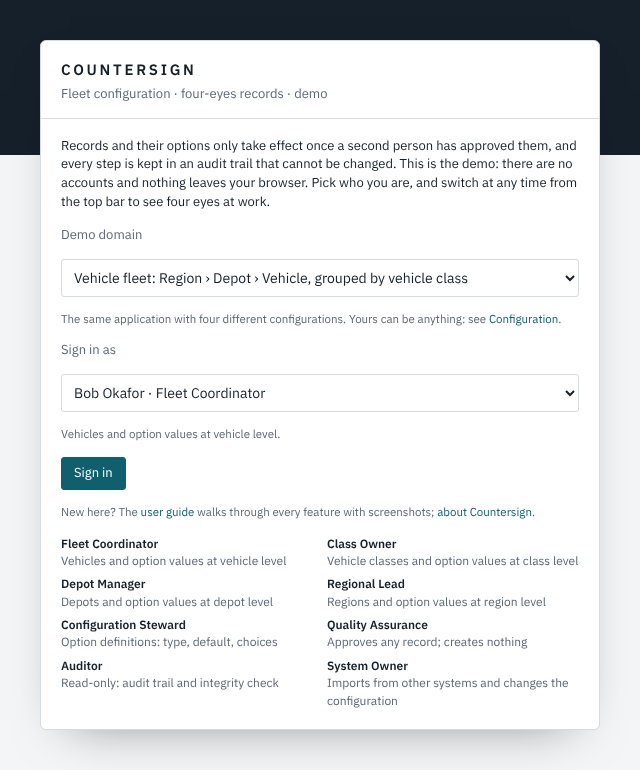
In the demo you choose a domain and a person; you can switch person at any time from the top bar, which is how you play both the author and the approver. In a production installation there is one button instead, "Sign in with Microsoft Entra ID" (or your organisation's single sign-on); who you are and which roles you hold come from there, and there is no way to switch person.
The overview
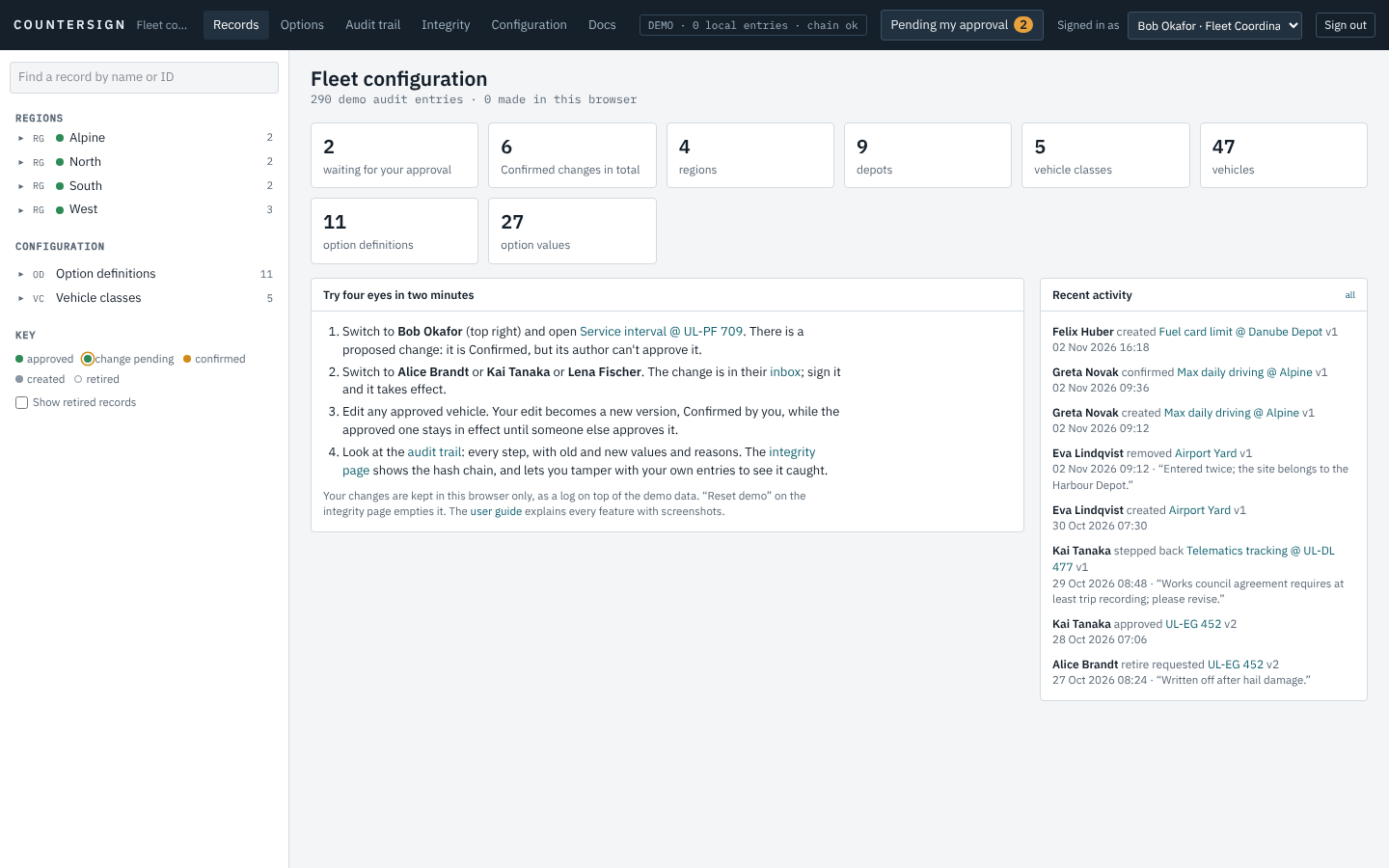
The top bar is always there: Records (the tree and this overview), Options (the catalogue of settings), Audit trail, Integrity, Configuration, and Pending my approval with the number of changes waiting for you. The status field in the middle says how many entries the trail has and whether its chain is intact.
Finding records
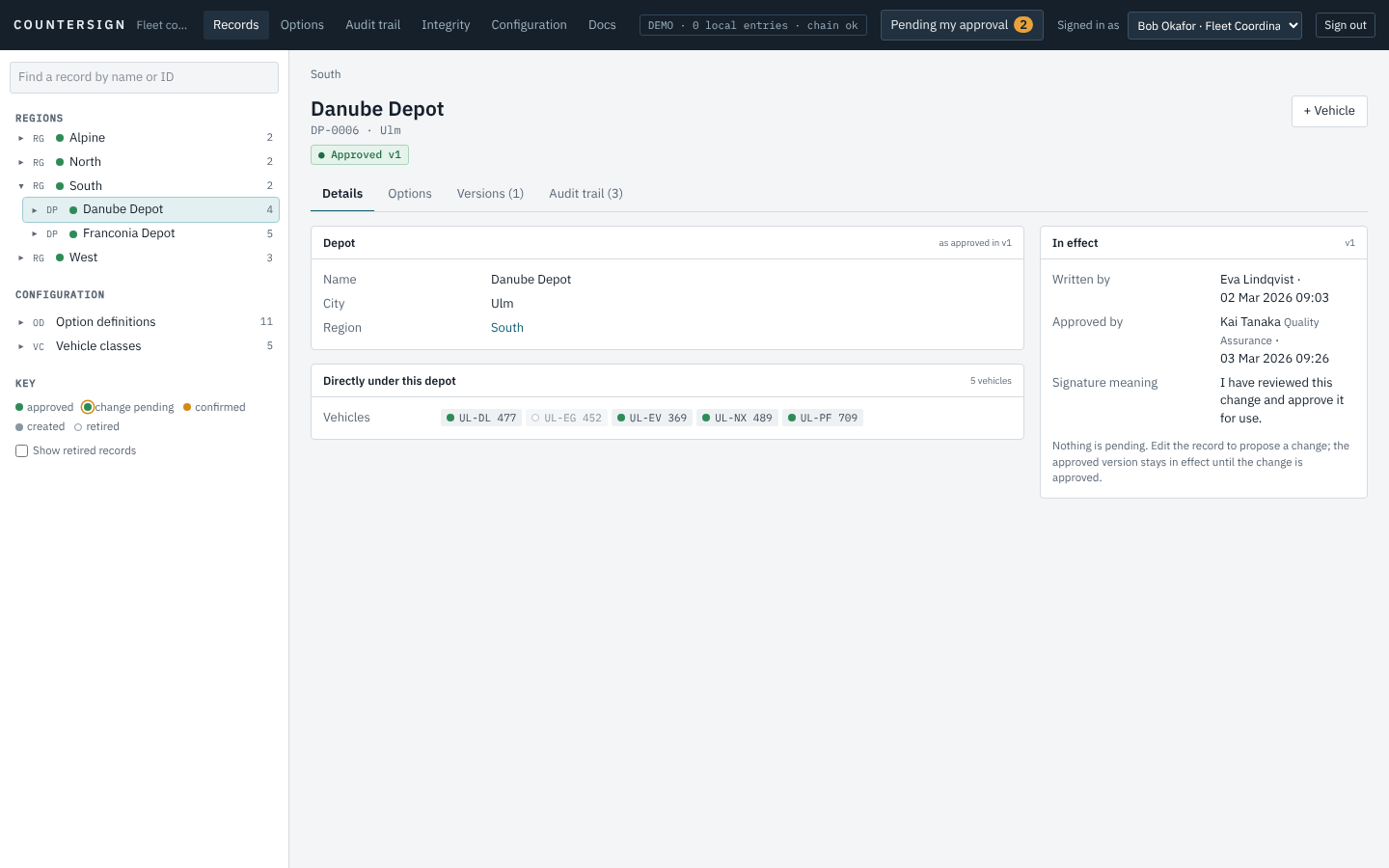
The tree on the left follows your hierarchy; the number on the right of a line is how many records sit under it. The dot before a name is the record's state:
| Dot | Meaning |
|---|---|
| green | approved and in effect |
| green with an amber ring | approved, and a change is pending |
| amber | confirmed, waiting for its first approval |
| grey | created, a draft |
| hollow | retired (shown only with "Show retired records") |
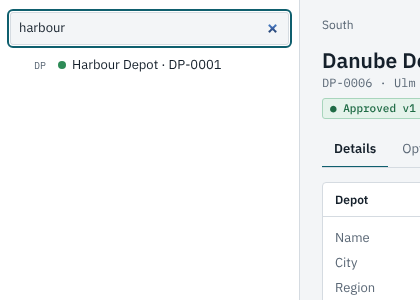
The search field finds records by name or ID.
Reading a record
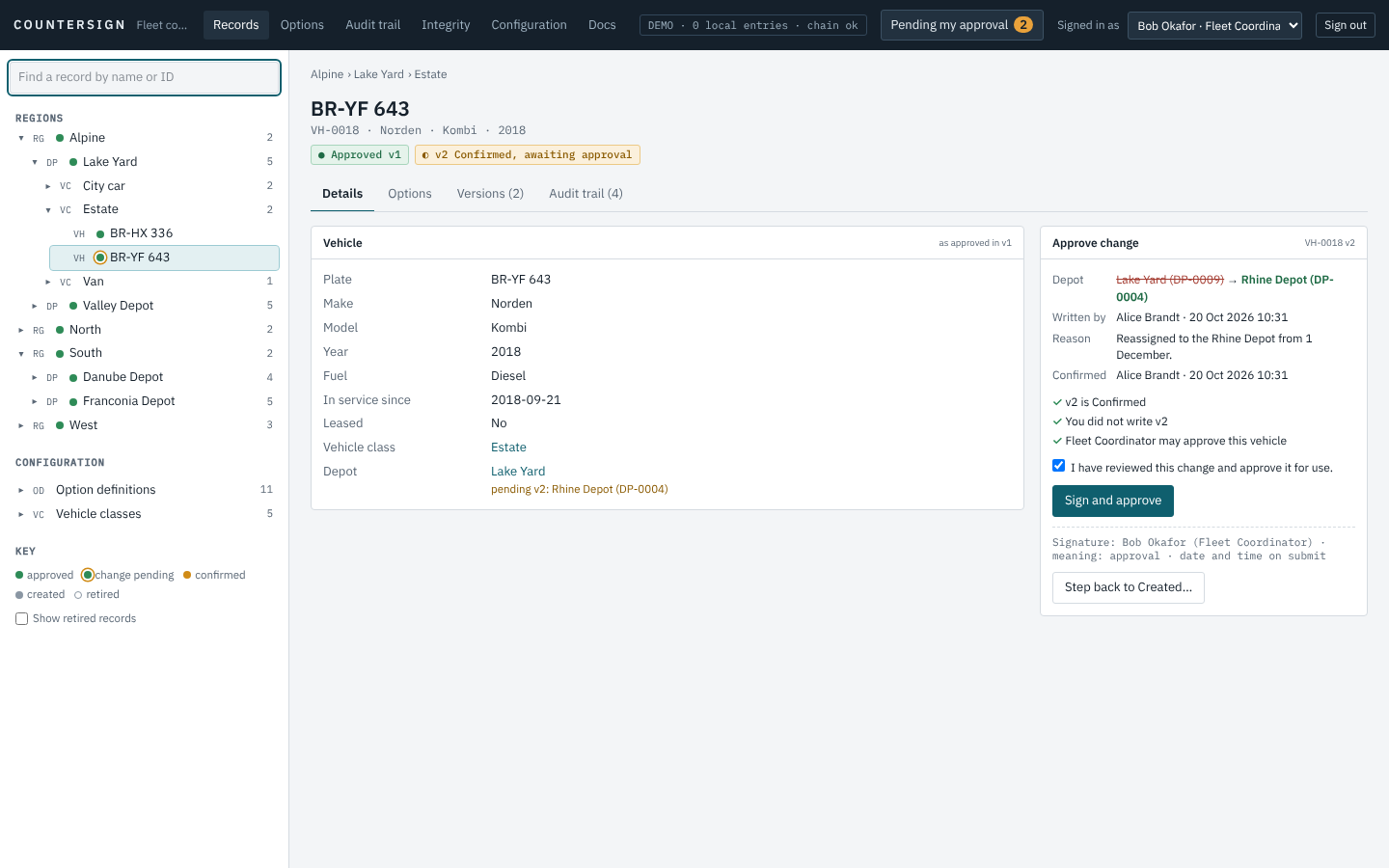
Under the title are the record's ID, its summary fields and its badges: what is in effect ("Approved v1") and what is pending ("v2 Confirmed, awaiting approval"). The Details tab shows the values in effect; where the pending version differs, the new value is shown underneath in amber. The panel on the right is the signature panel: it shows the pending change, or who wrote and approved the version in effect.
Tabs: Details, Options (for records that can carry settings), Versions and Audit trail.
Options: which value applies, and why
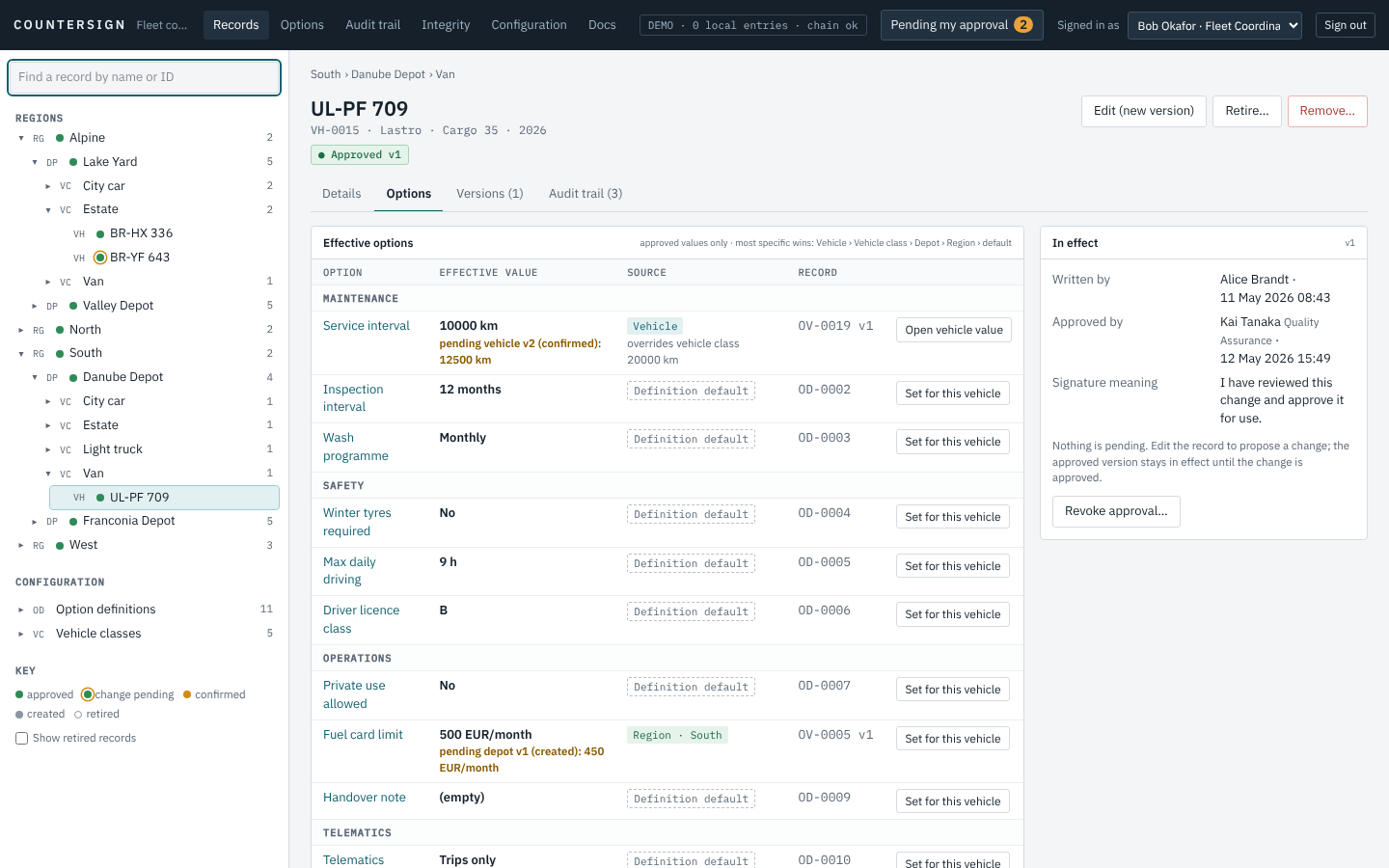
An option is defined once and can be set at any level. For this vehicle, each line shows the effective value, the source (the level and the record it comes from, or "Definition default"), the option value record and its version, what the value overrides at less specific levels, and any pending change. The order of precedence is written in the card's header: here Vehicle › Vehicle class › Depot › Region › default.
Only approved values count. A value that is still a draft or waiting for approval is shown as pending and changes nothing yet.
Four eyes: you cannot approve your own change
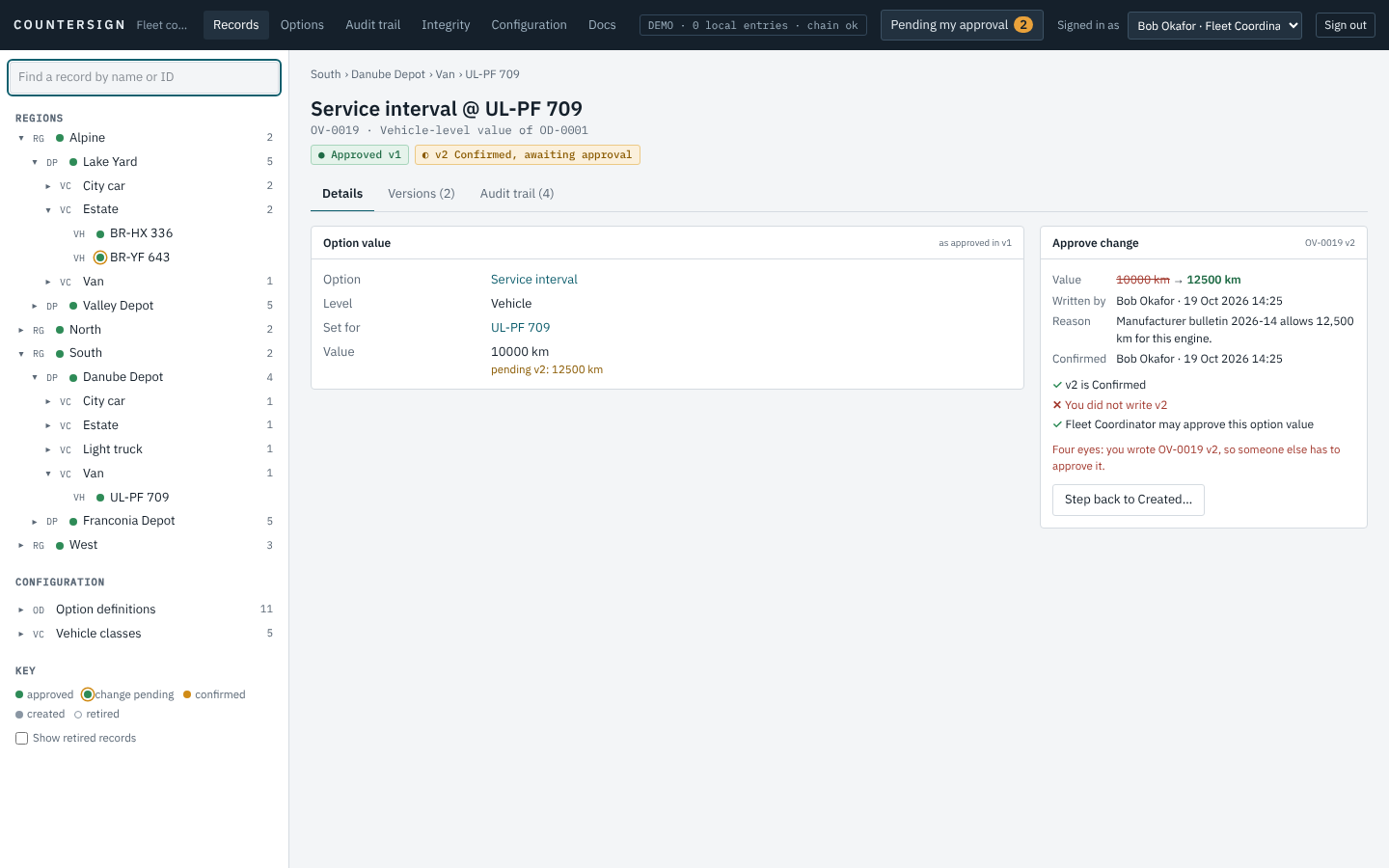
Bob wrote this change, so the panel shows him the checks, with the failed one marked, and no button to approve. The application never offers an action that the rules would refuse, and it says why.
The approver's inbox
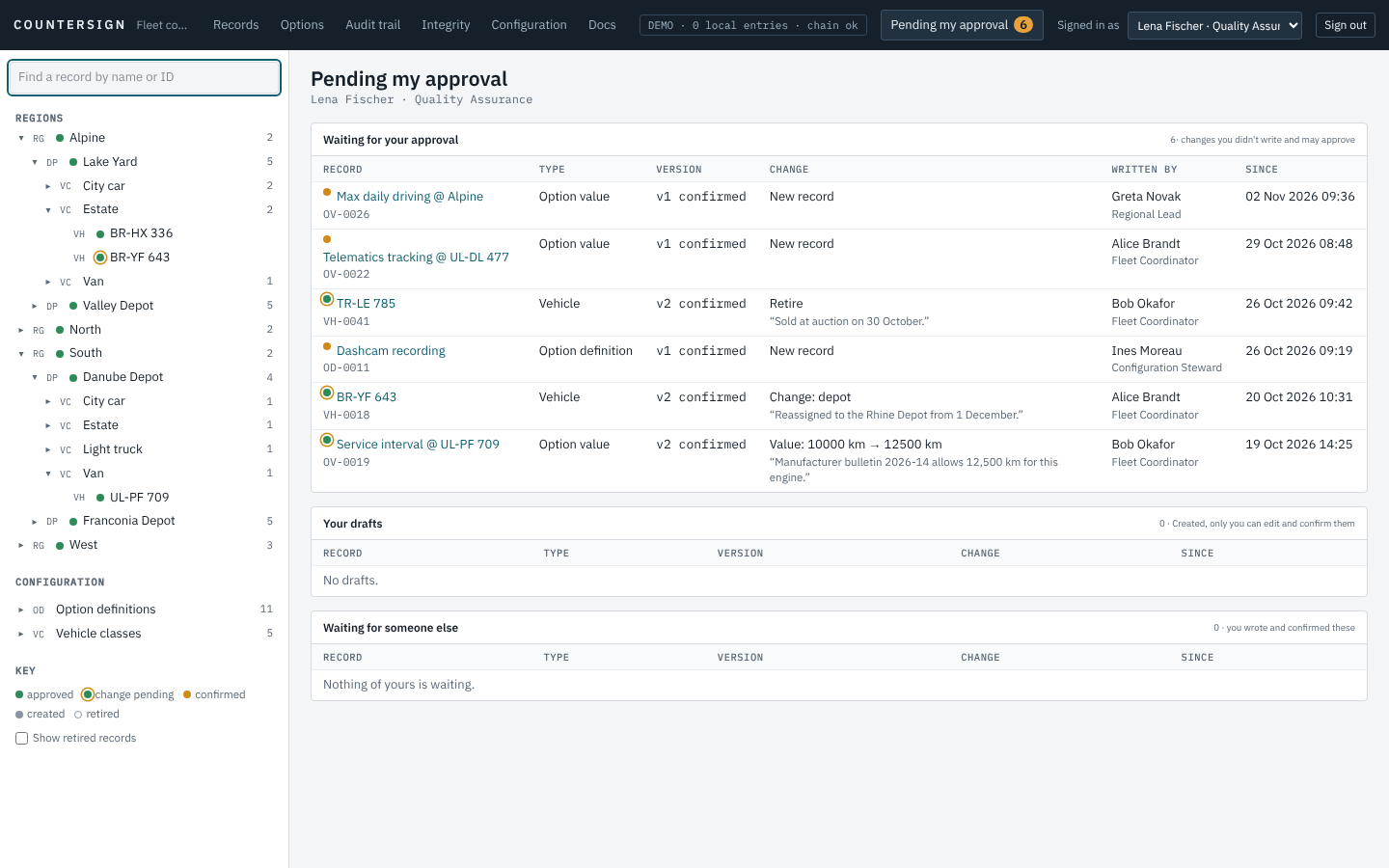
Pending my approval lists the changes you did not write and are allowed to approve, then your own drafts, then your changes waiting for someone else.
Signing
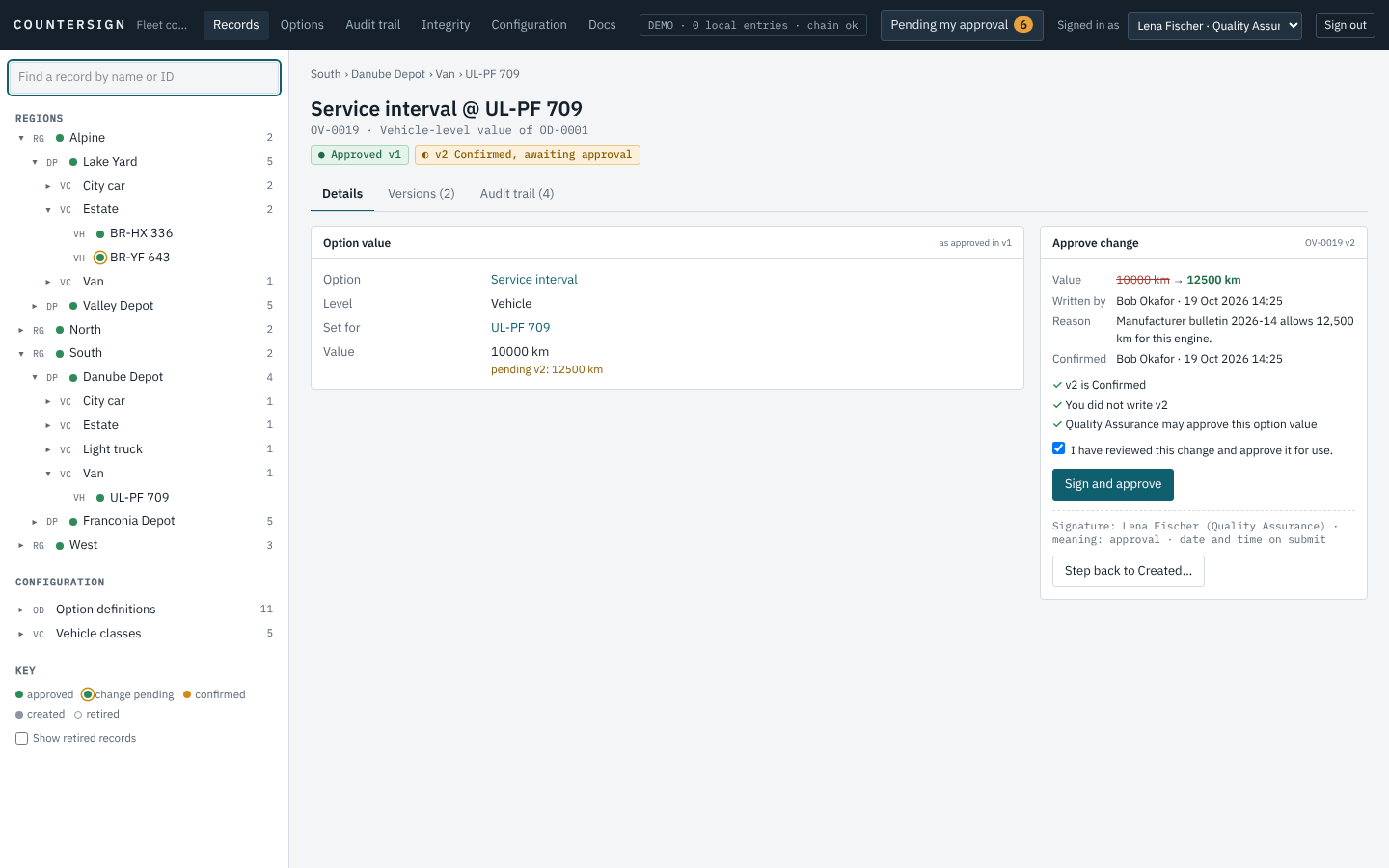
Before you sign you see the old and the new value, who wrote the change and when, the reason given, and the three checks. The line under the button is your signature: your name, your role, and its meaning; date and time are added when you submit. In a production installation a signature needs a recent sign-in: if yours is older than the configured limit (15 minutes unless your administrator changed it) you are asked to sign in again first.
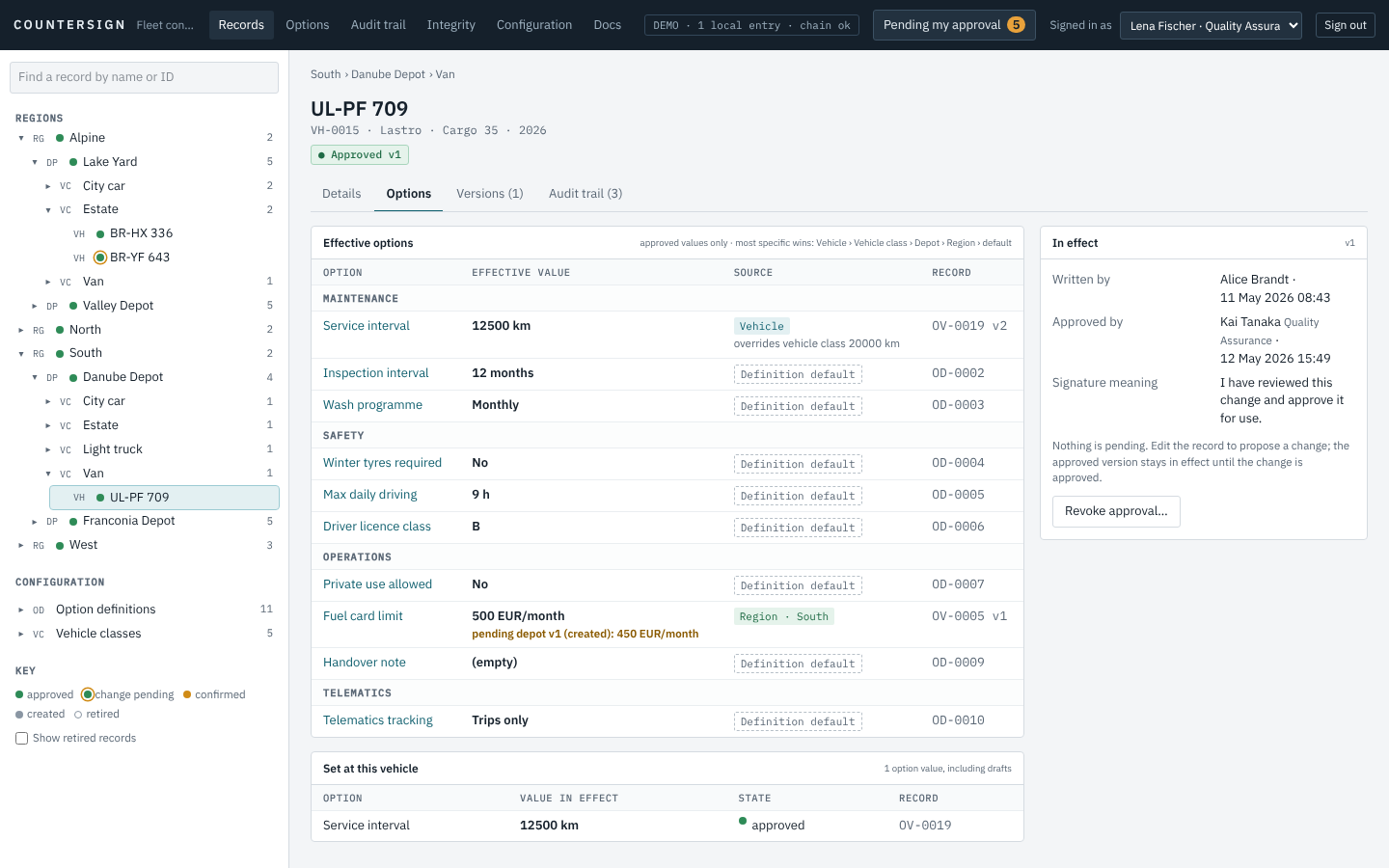
After approval the value is in effect at once, with the new version as its source.
Changing an approved record
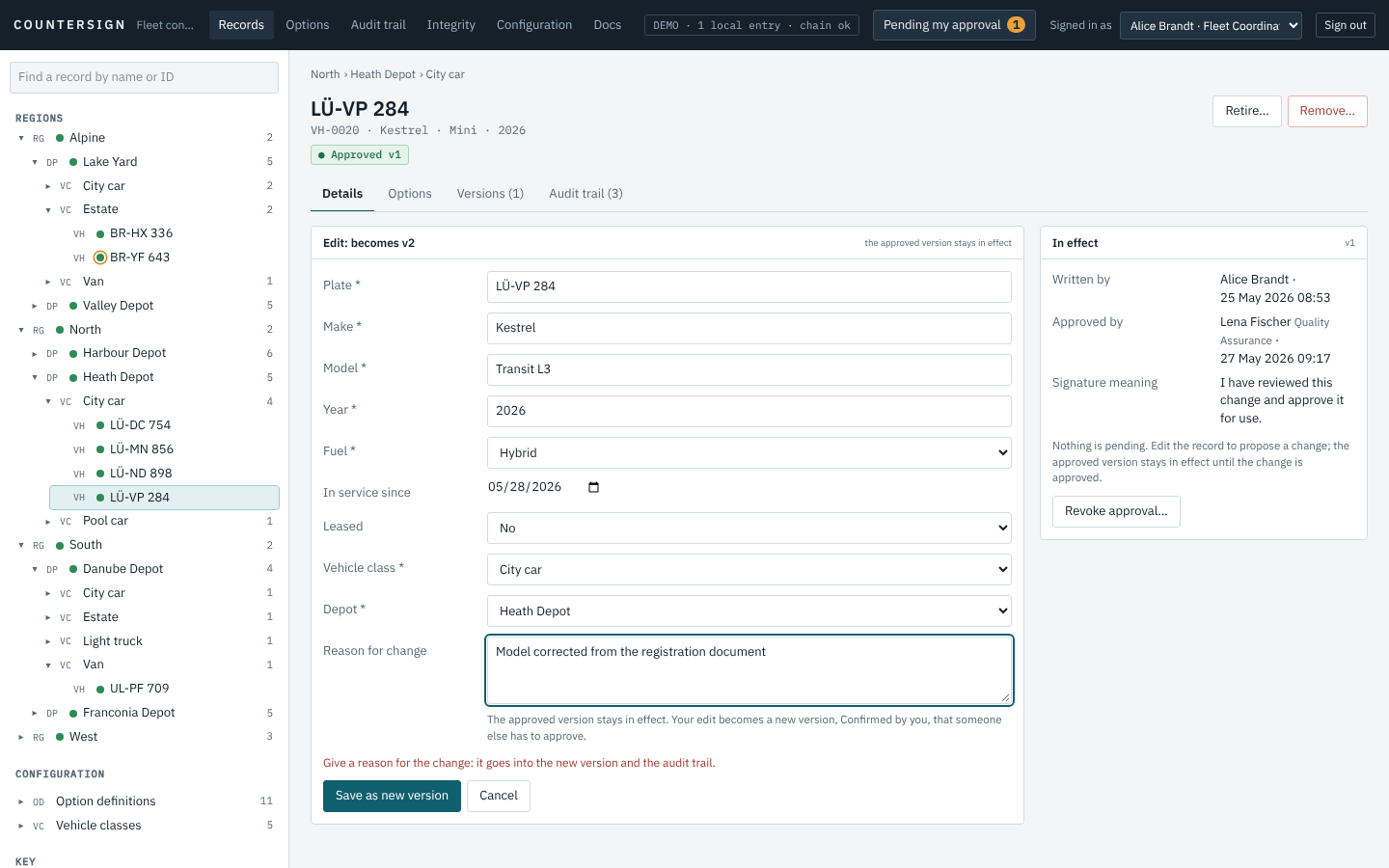
Edit (new version) opens the form with the current values. A reason is mandatory; the form cannot be saved without one. It goes into the new version and the audit trail.
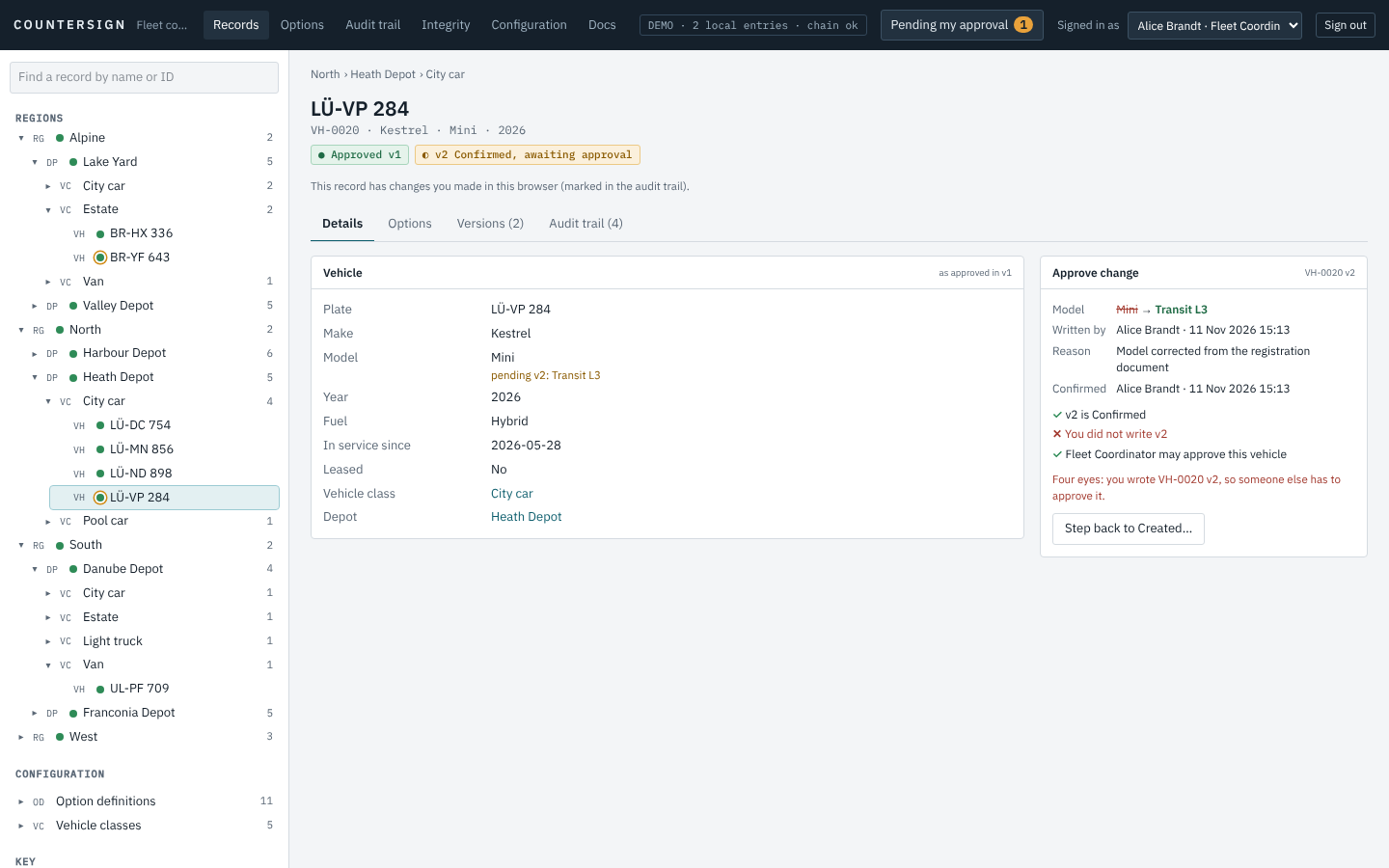
Your edit is now v2, Confirmed by you. v1 is still what counts until someone else approves v2.
Sending a change back
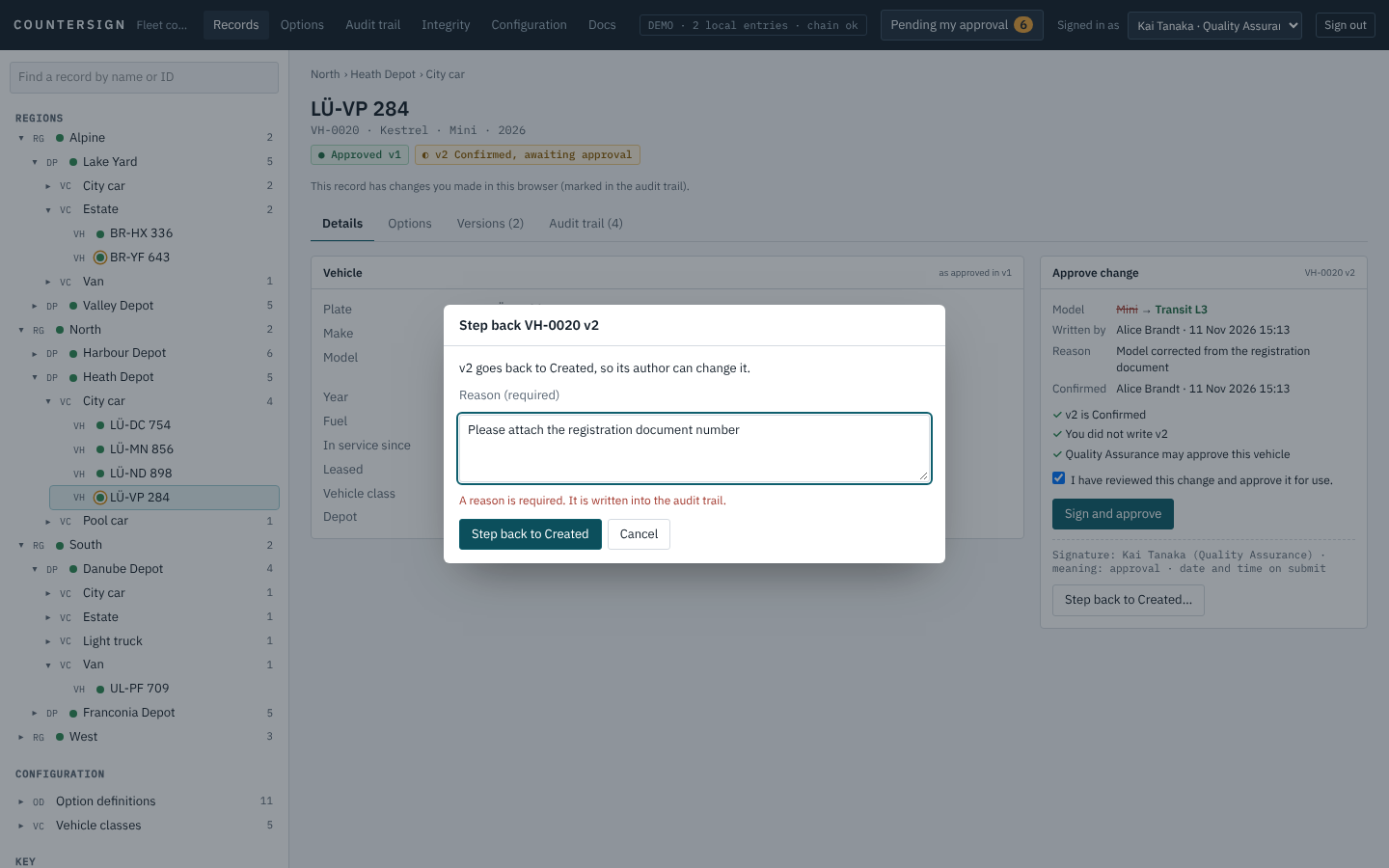
Step back moves a version one state back: Confirmed to Created (so its author can change it), or Approved to Confirmed (revoking an approval; the previous approved version, if there is one, applies again). It always needs a reason.
Versions and the record's own audit trail
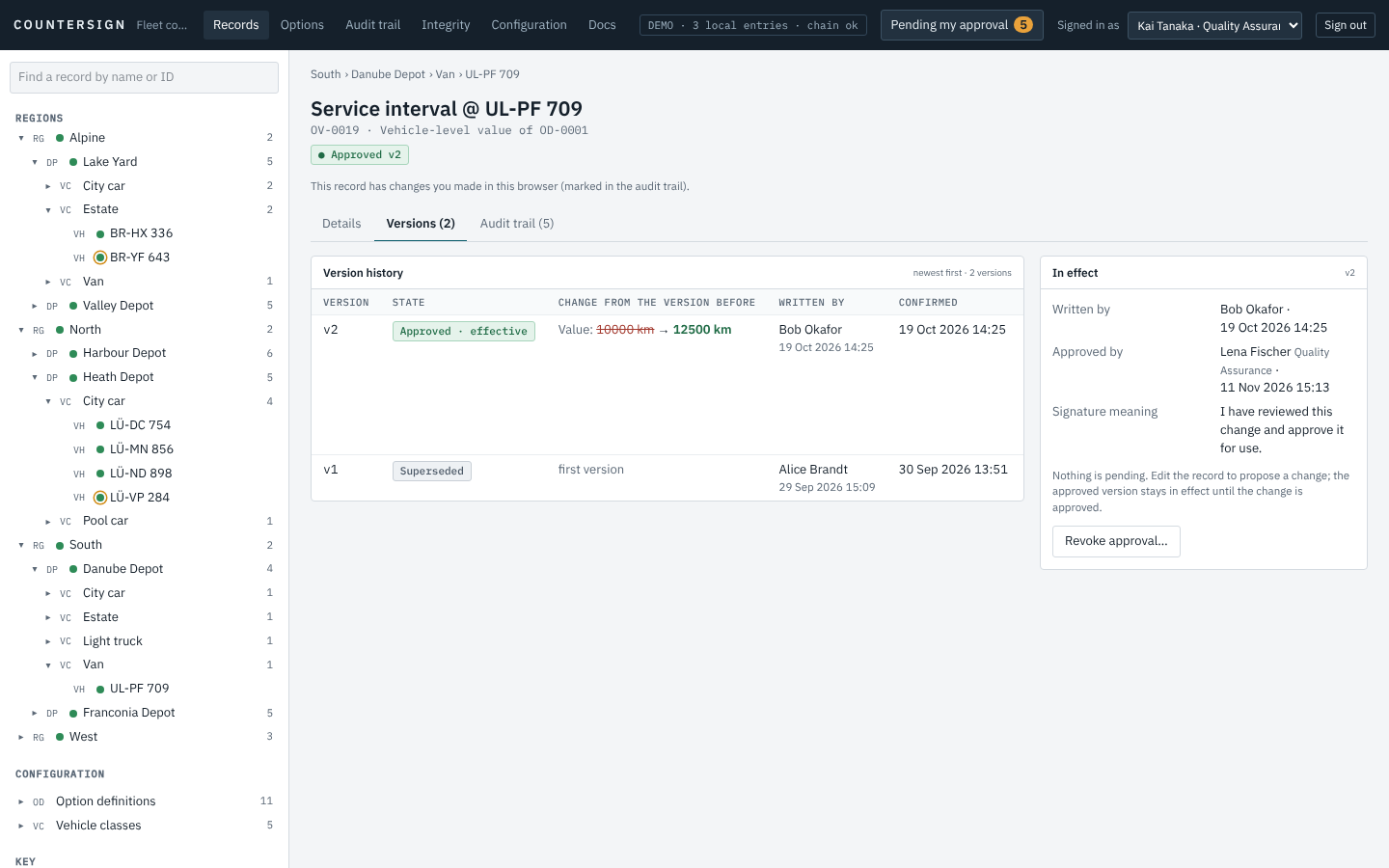
Versions lists every version with its state, the change from the version before, who wrote, confirmed and approved it, and the reason. An older approved version is shown as Superseded.
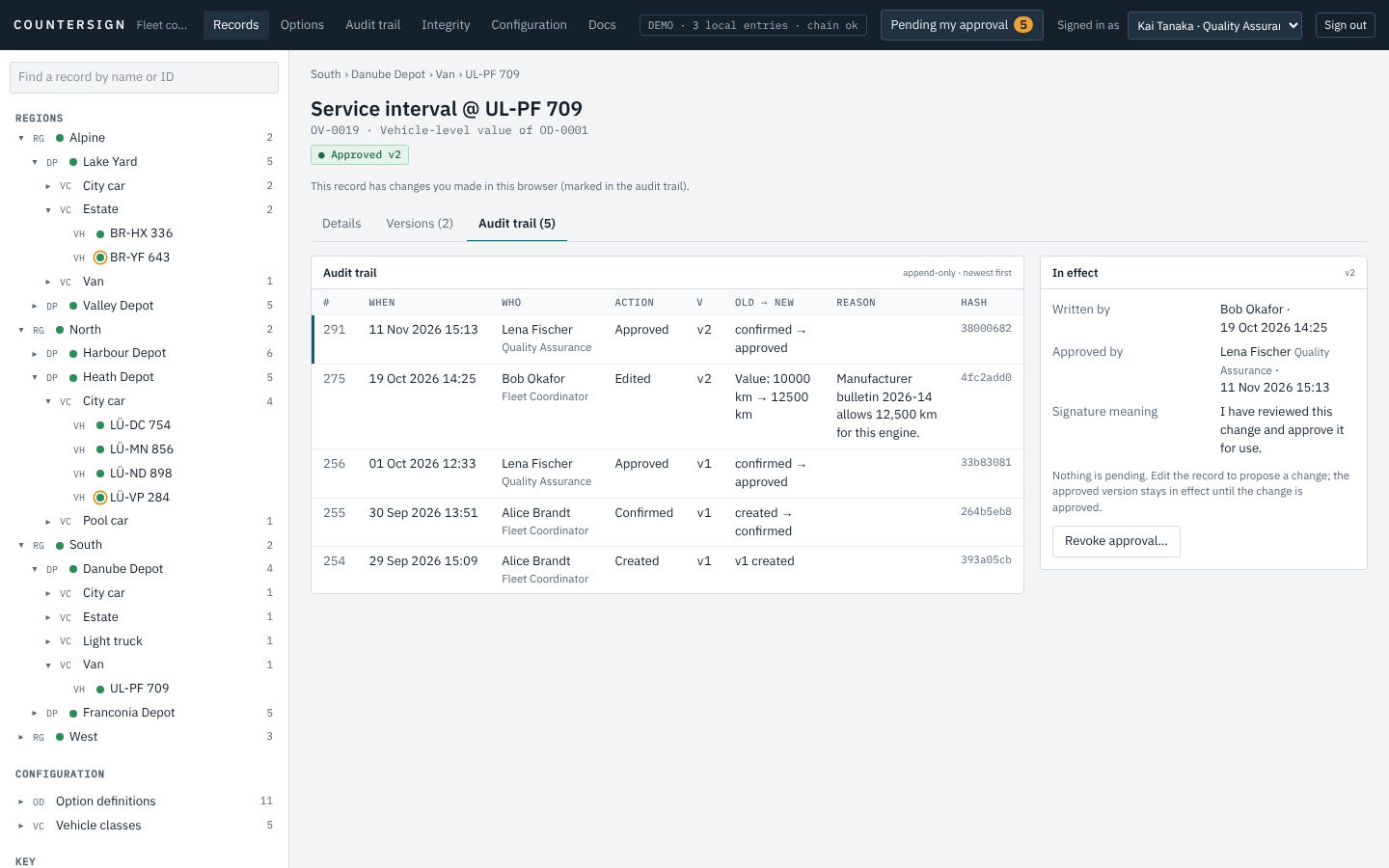
Audit trail lists every action on this record: when, who (with their role at the time), what, old and new values, the reason, and the first characters of the entry's hash.
Creating a record
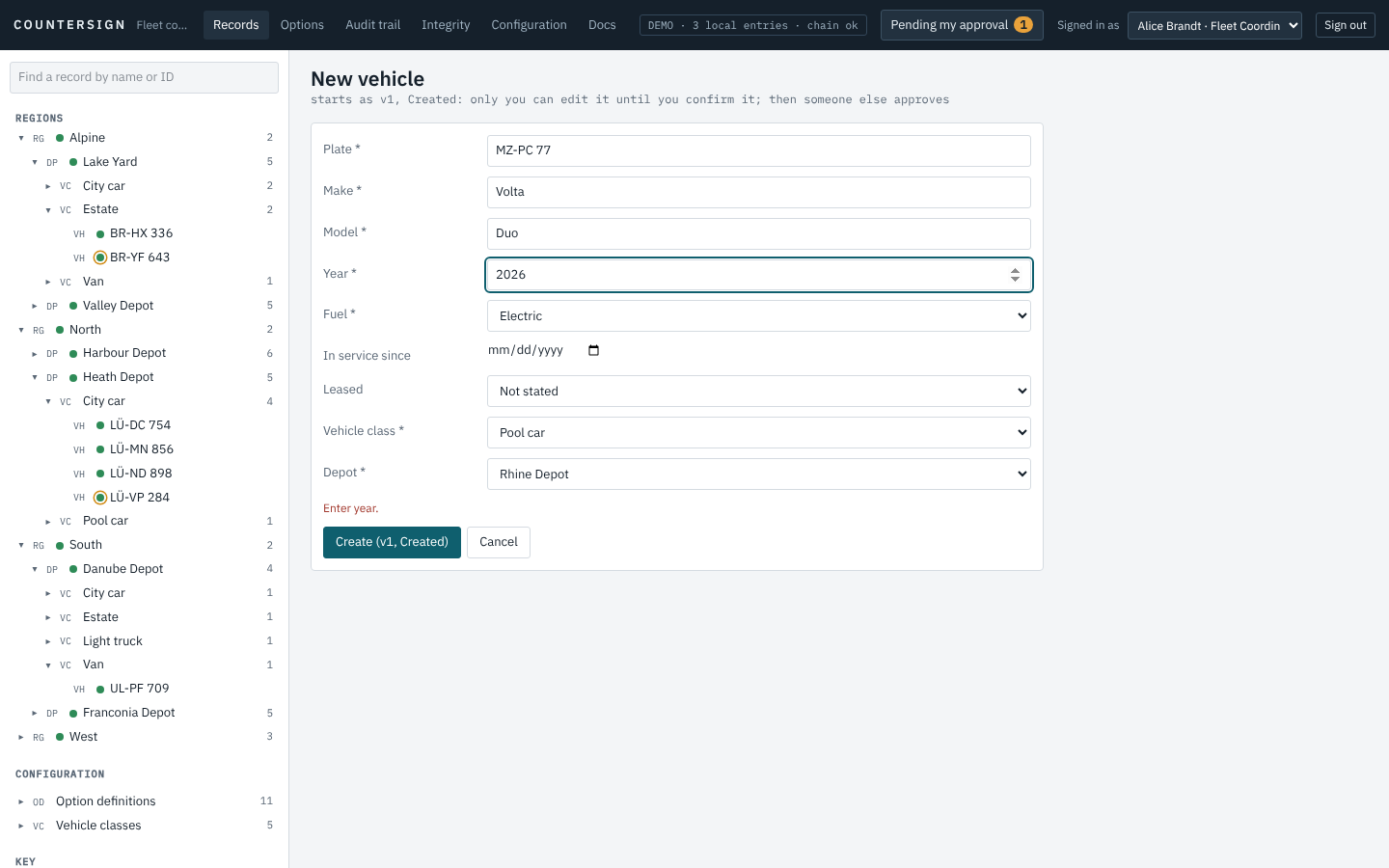
The + buttons in the tree and on a parent record ("+ Vehicle" on a depot) open the form. Fields marked * are required; the form checks the same rules the server does.
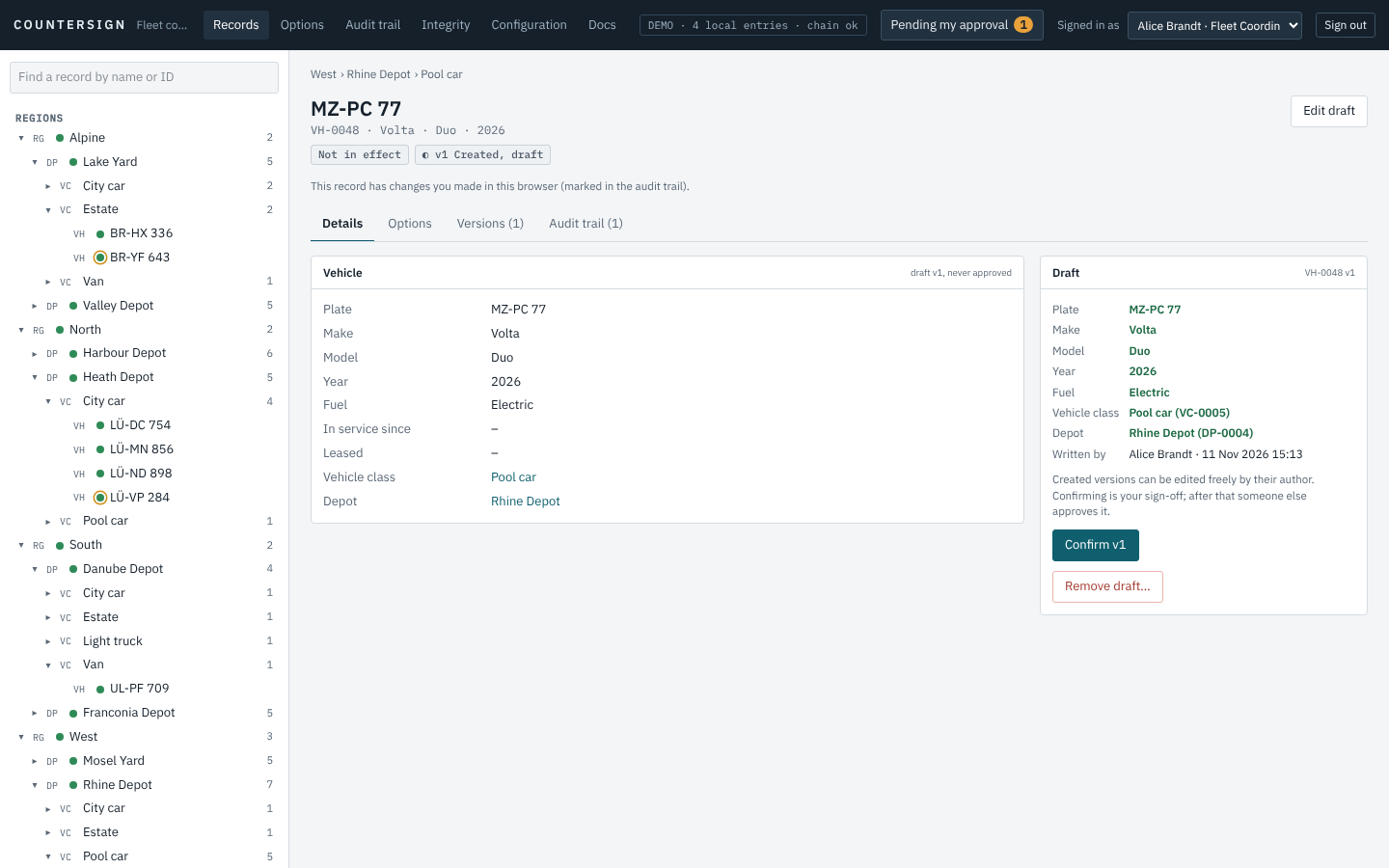
A new record is v1, Created: only you can edit it. Confirm when it is complete.
Removing a draft, retiring and removing a record
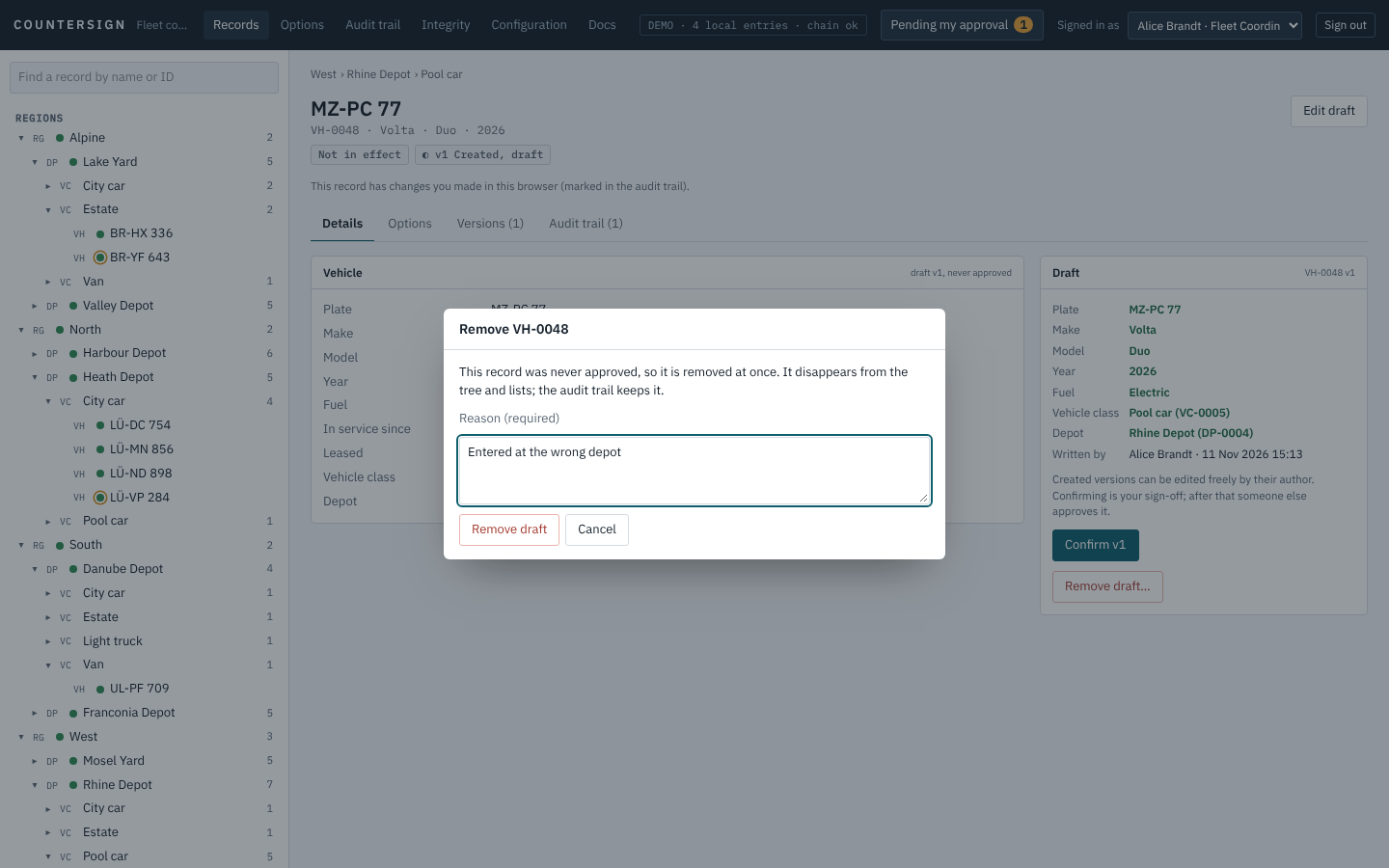
A record that was never approved can be removed at once, by its author or an approver, with a reason.
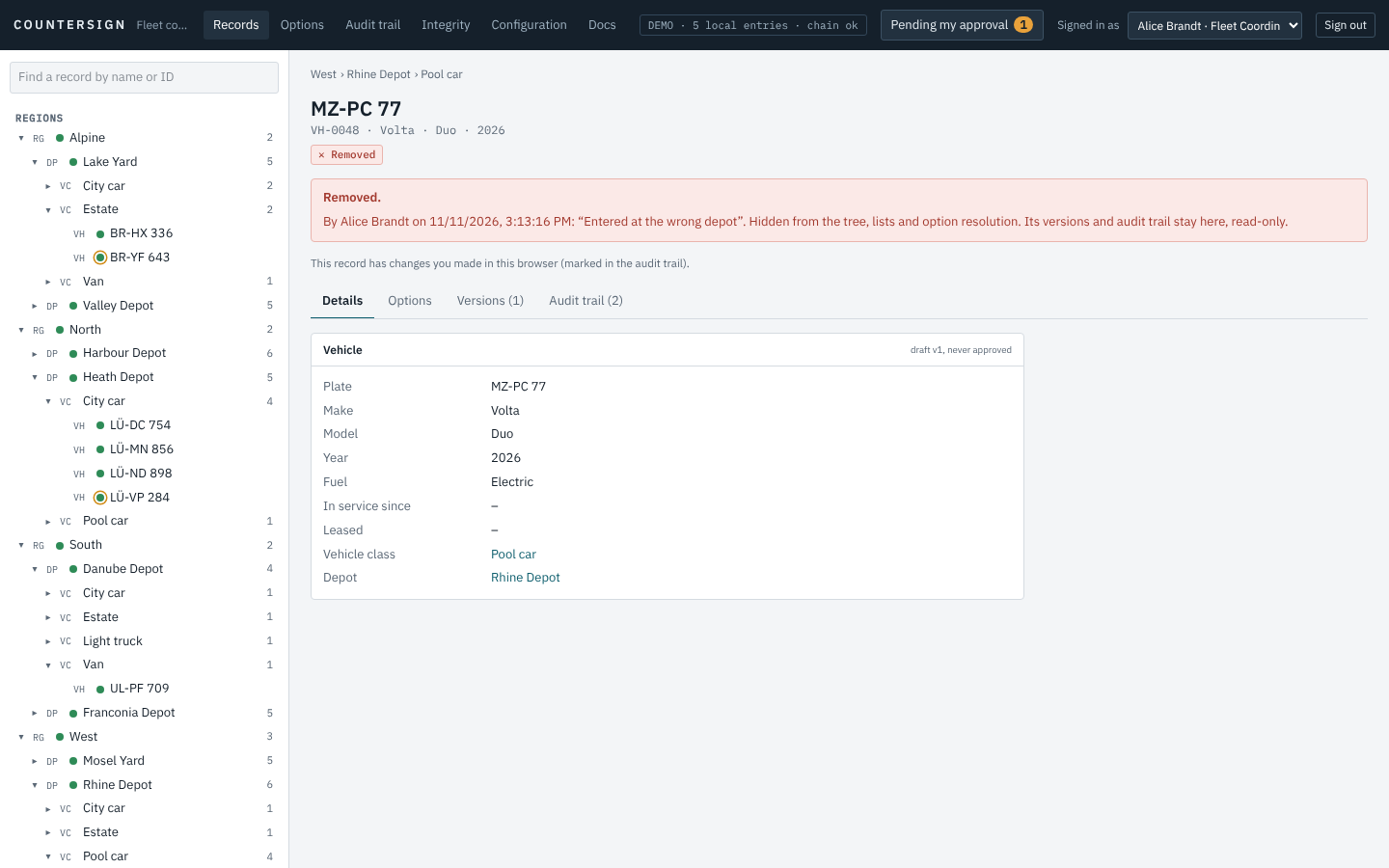
It disappears from the tree and lists; its page, versions and audit trail remain.
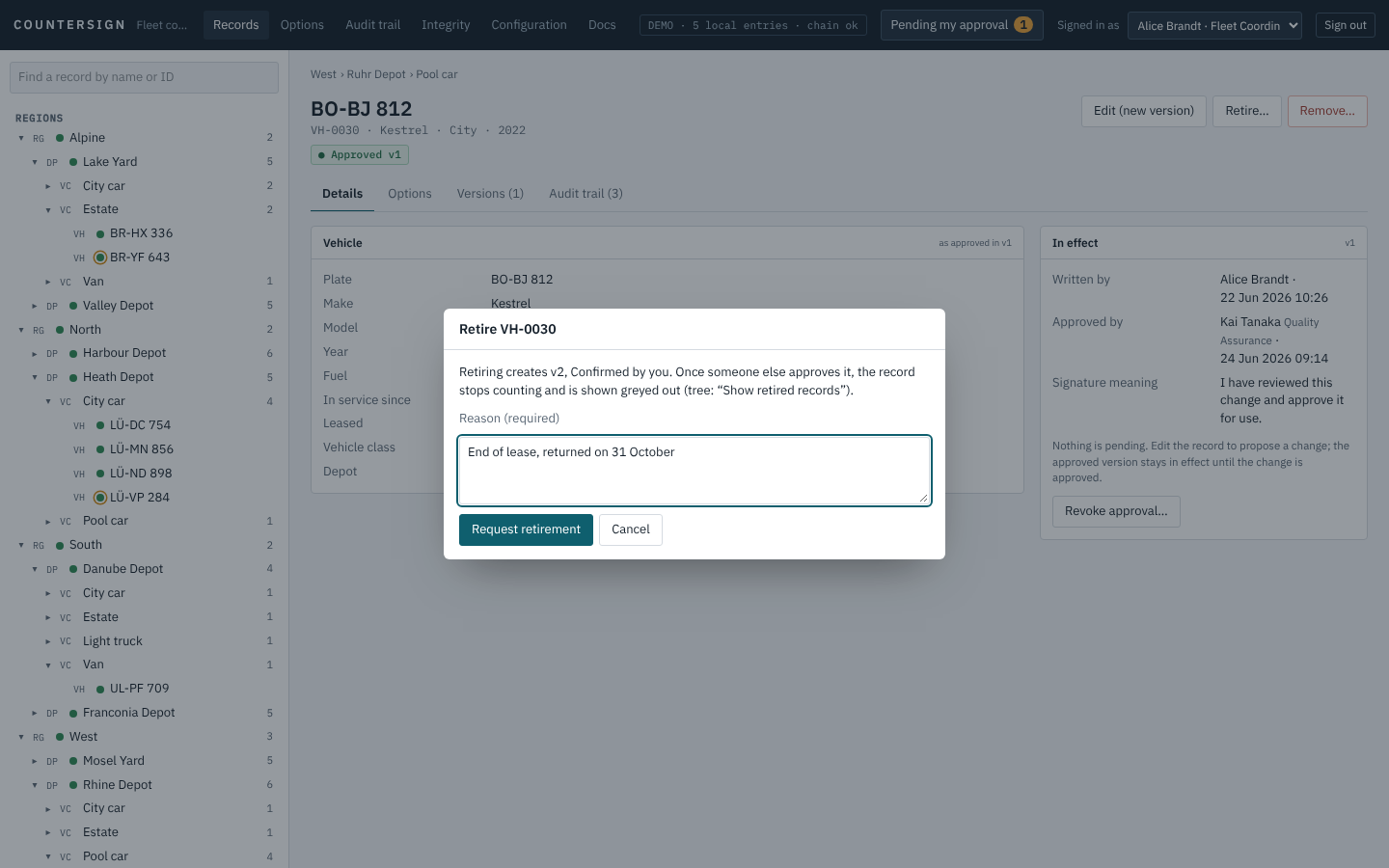
An approved record is retired (it stops counting and is greyed out) or removed (it disappears from lists) by a new version that a second person approves. A record that others still refer to cannot be retired or removed; the message names them.
The options catalogue
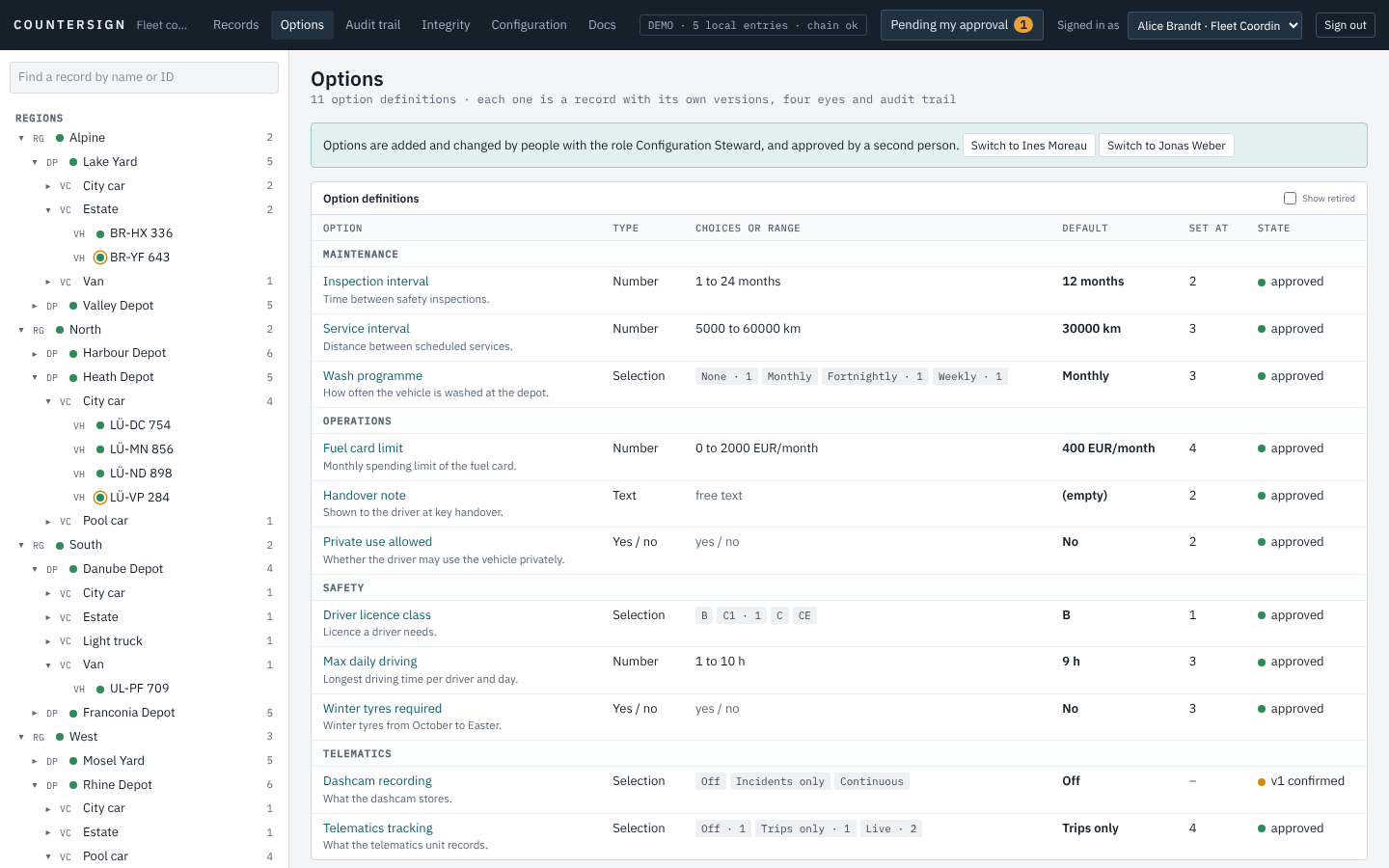
Options lists every definition with its type, choices or range, default, and how often it is set. Definitions are records too: they have versions, four eyes and an audit trail.
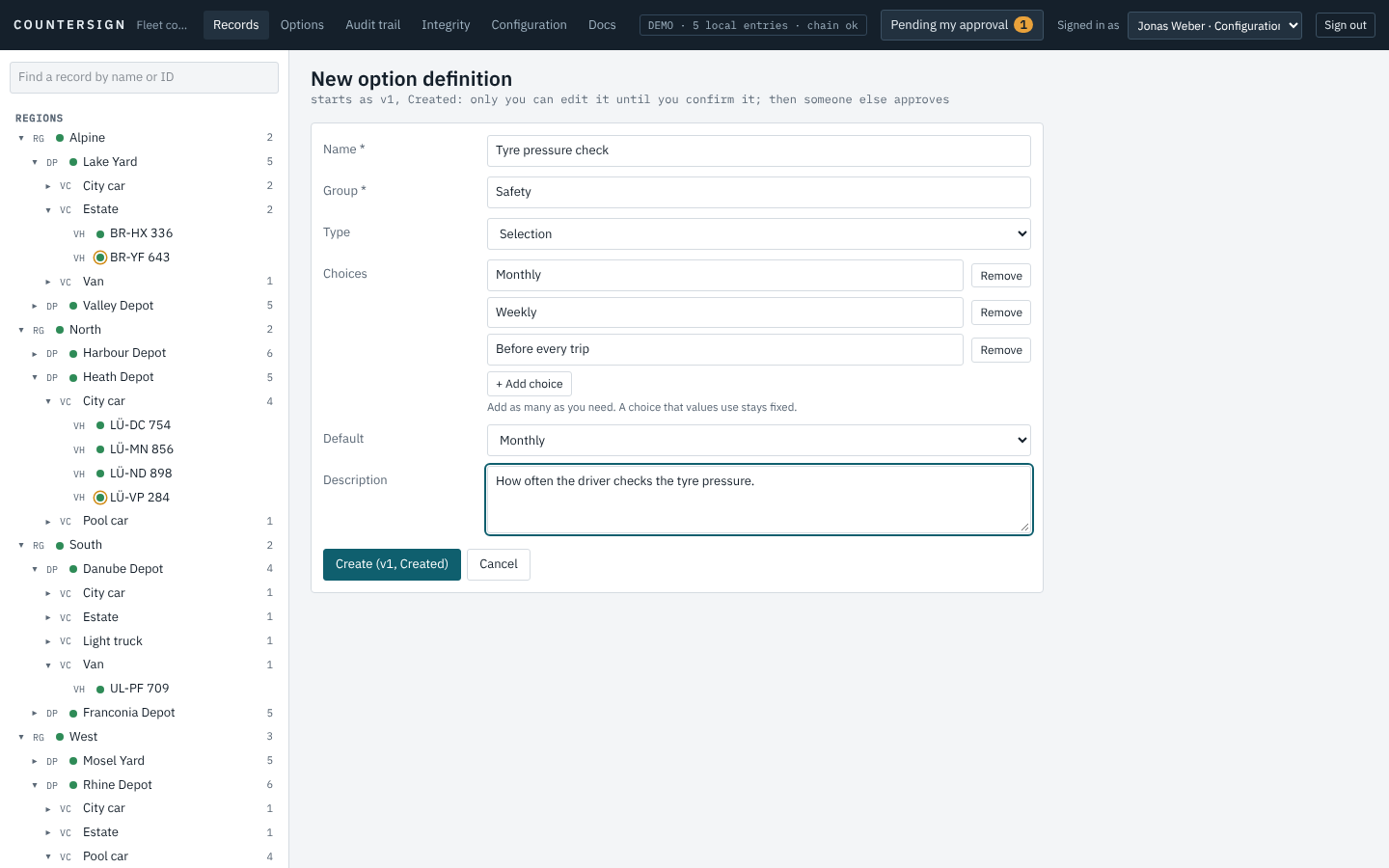
People with the right to write option definitions add options: name, group, type (yes/no, number with unit and range, text, selection), default.
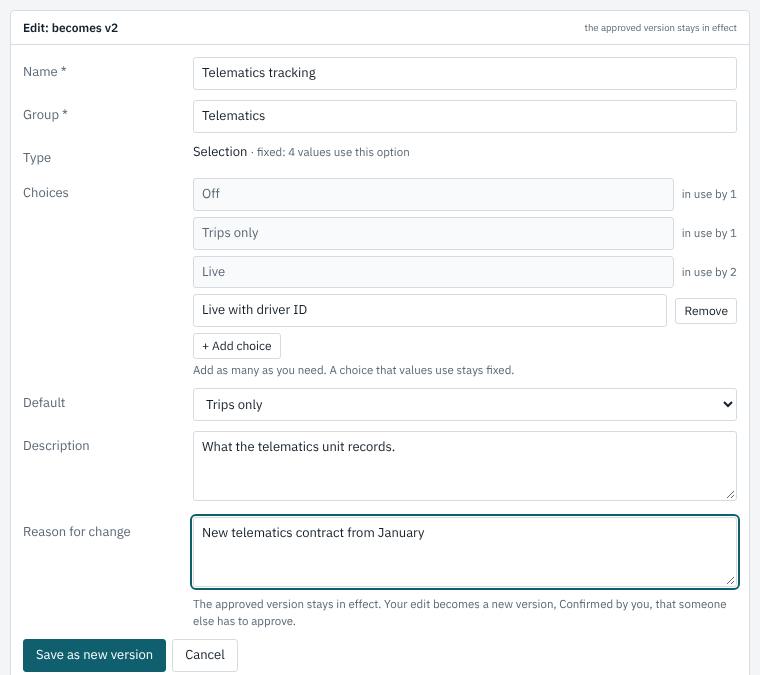
A choice that values use cannot be renamed or removed, an option with values keeps its type, and a range cannot be narrowed past values in use. Change or remove those values first.
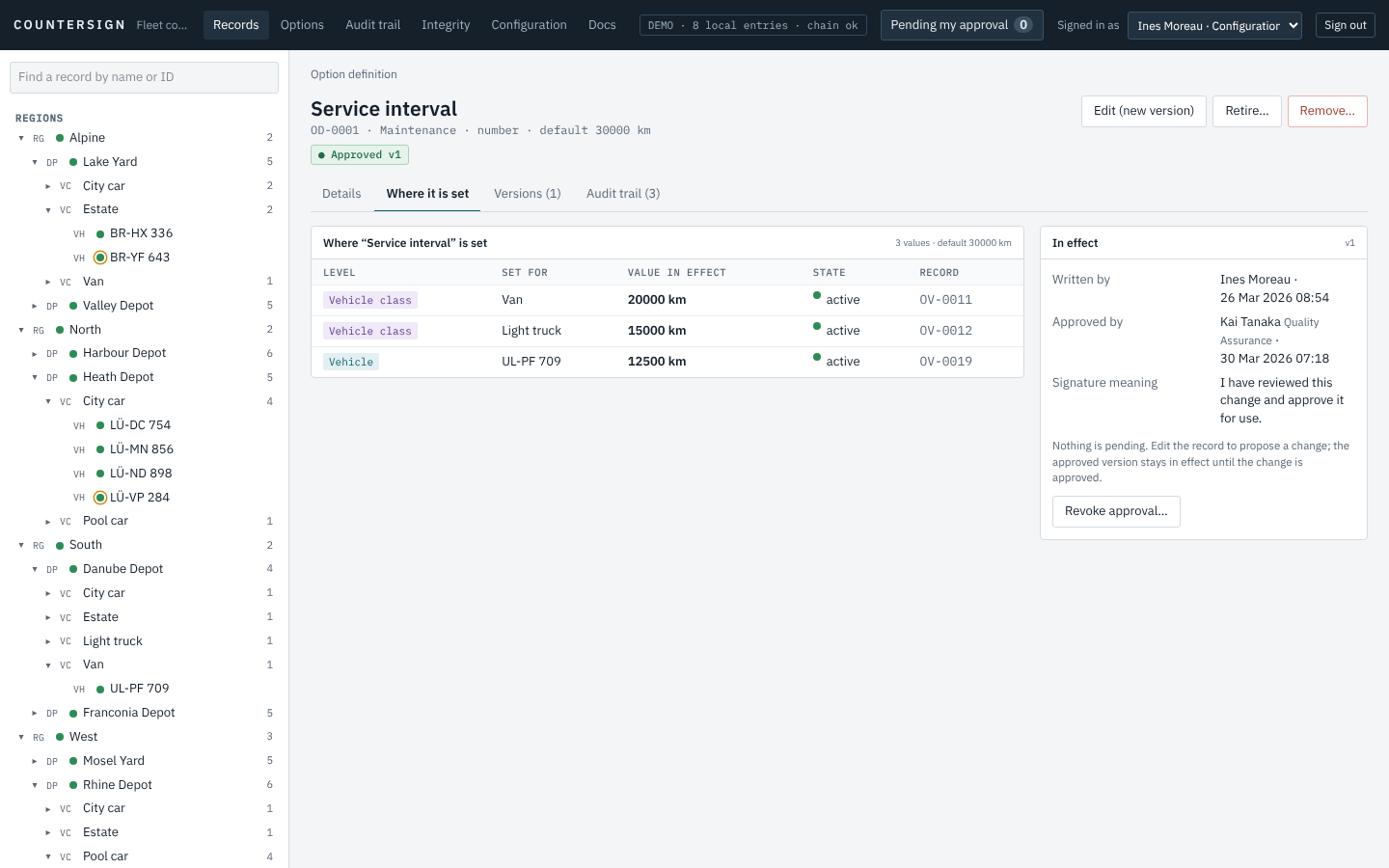
On an option's page, Where it is set lists every value by level.
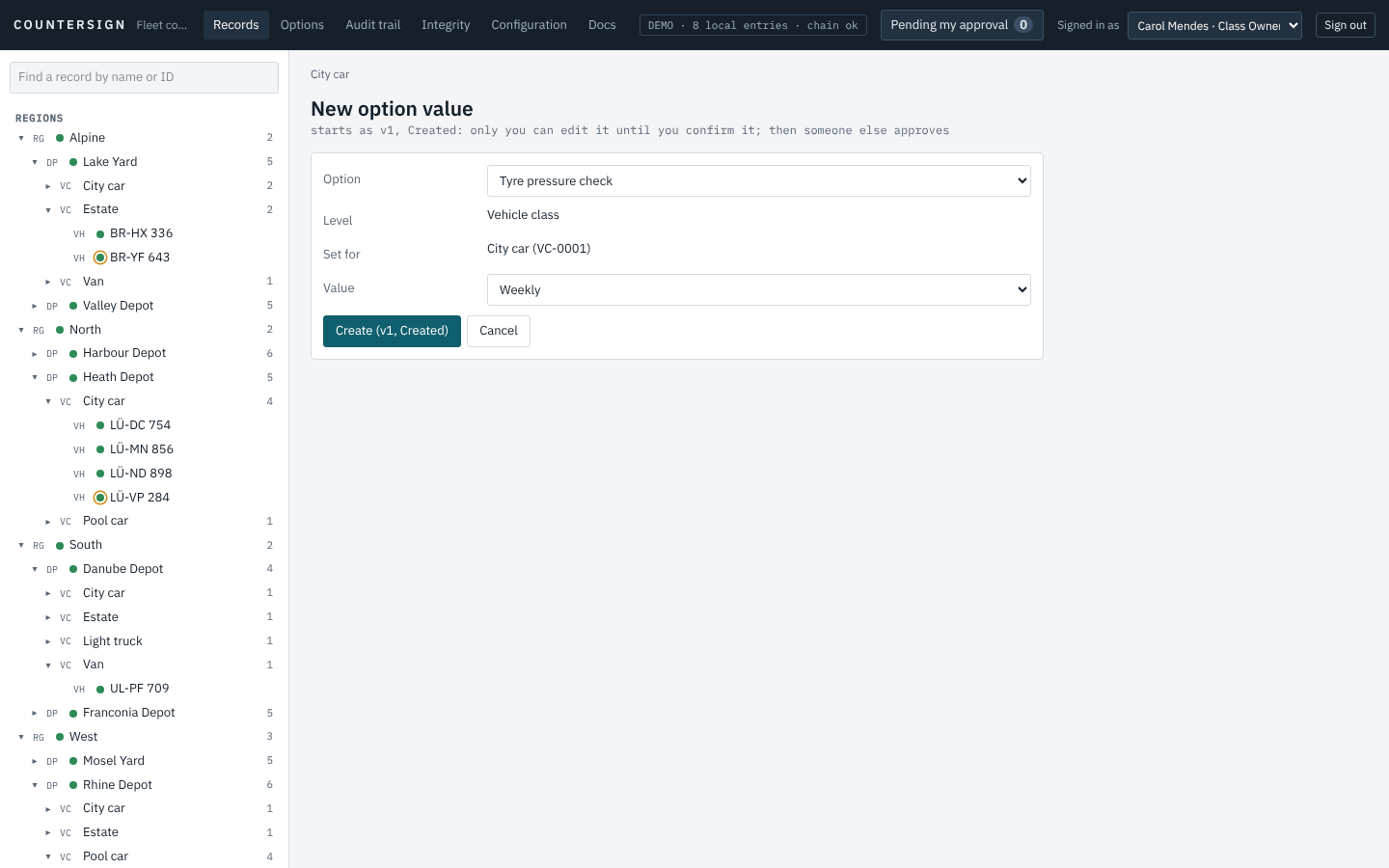
To set an option for a record, open the record's Options tab and choose "Set for this …". The value is a record of its own and goes through the same workflow.
The audit trail
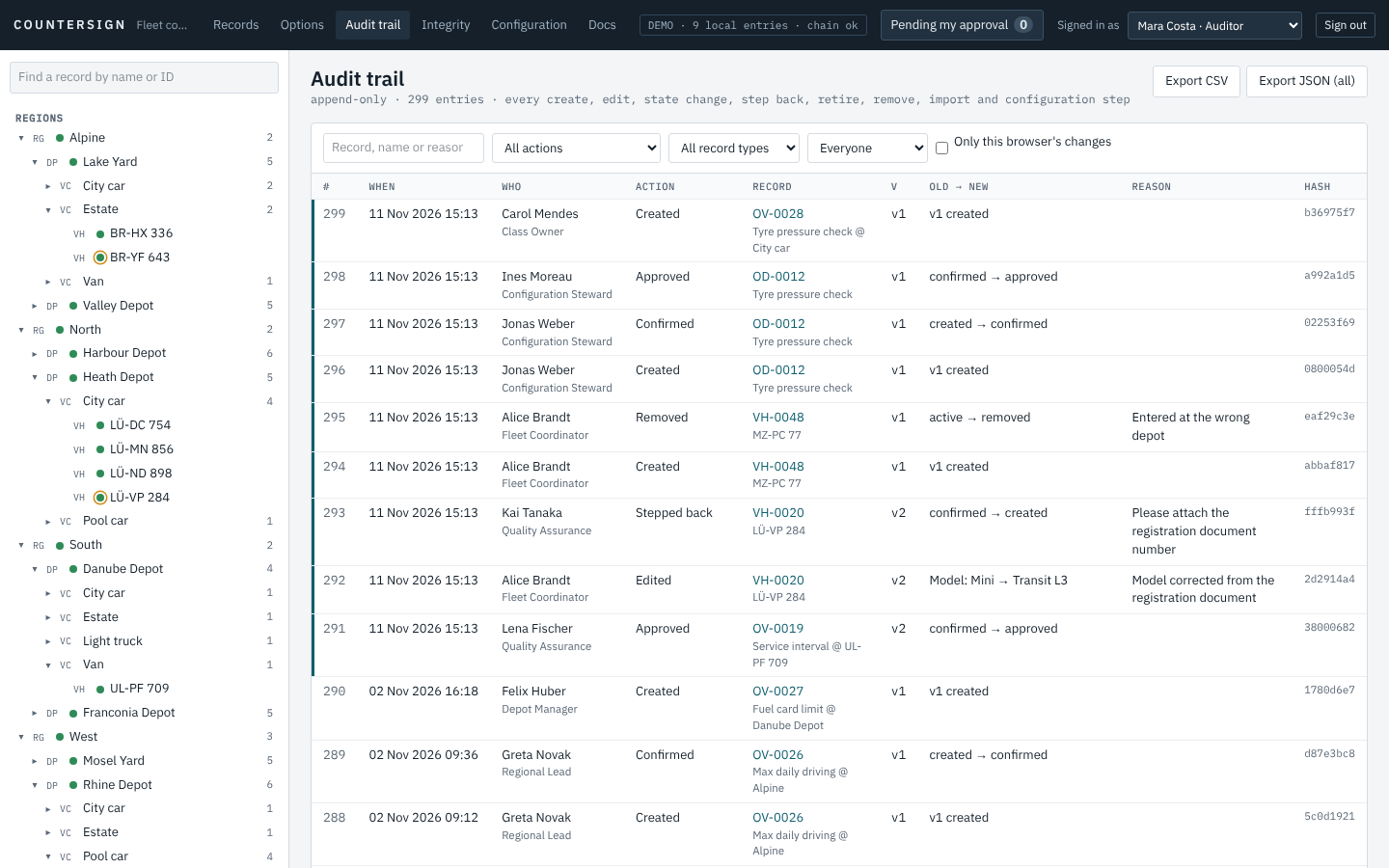
Every action in the system, newest first. Filter by text, action, record type and person. Export CSV saves what the filters show; Export JSON saves the complete trail with every field and hash.
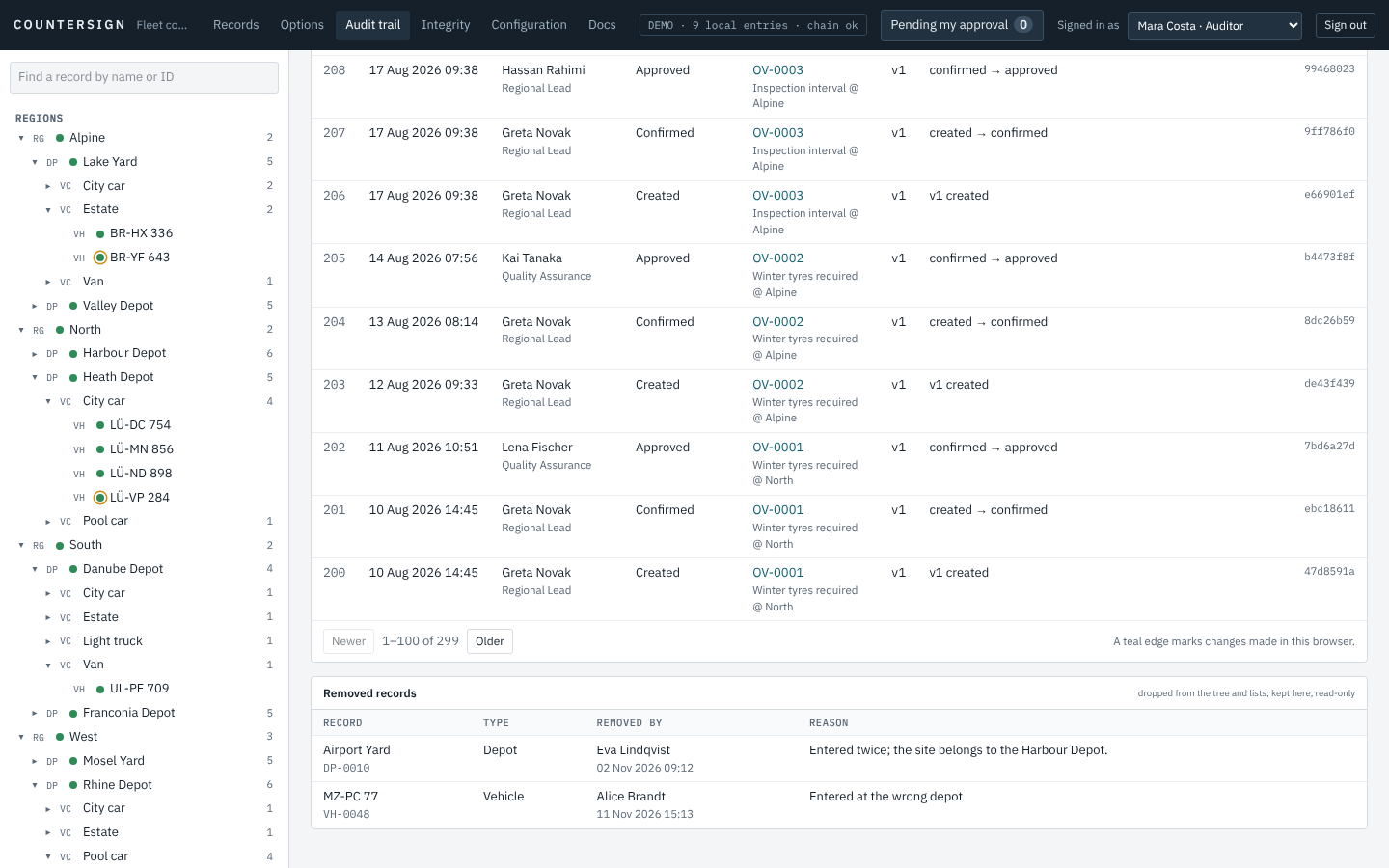
Removed records are listed at the bottom, with who removed them and why.
Integrity
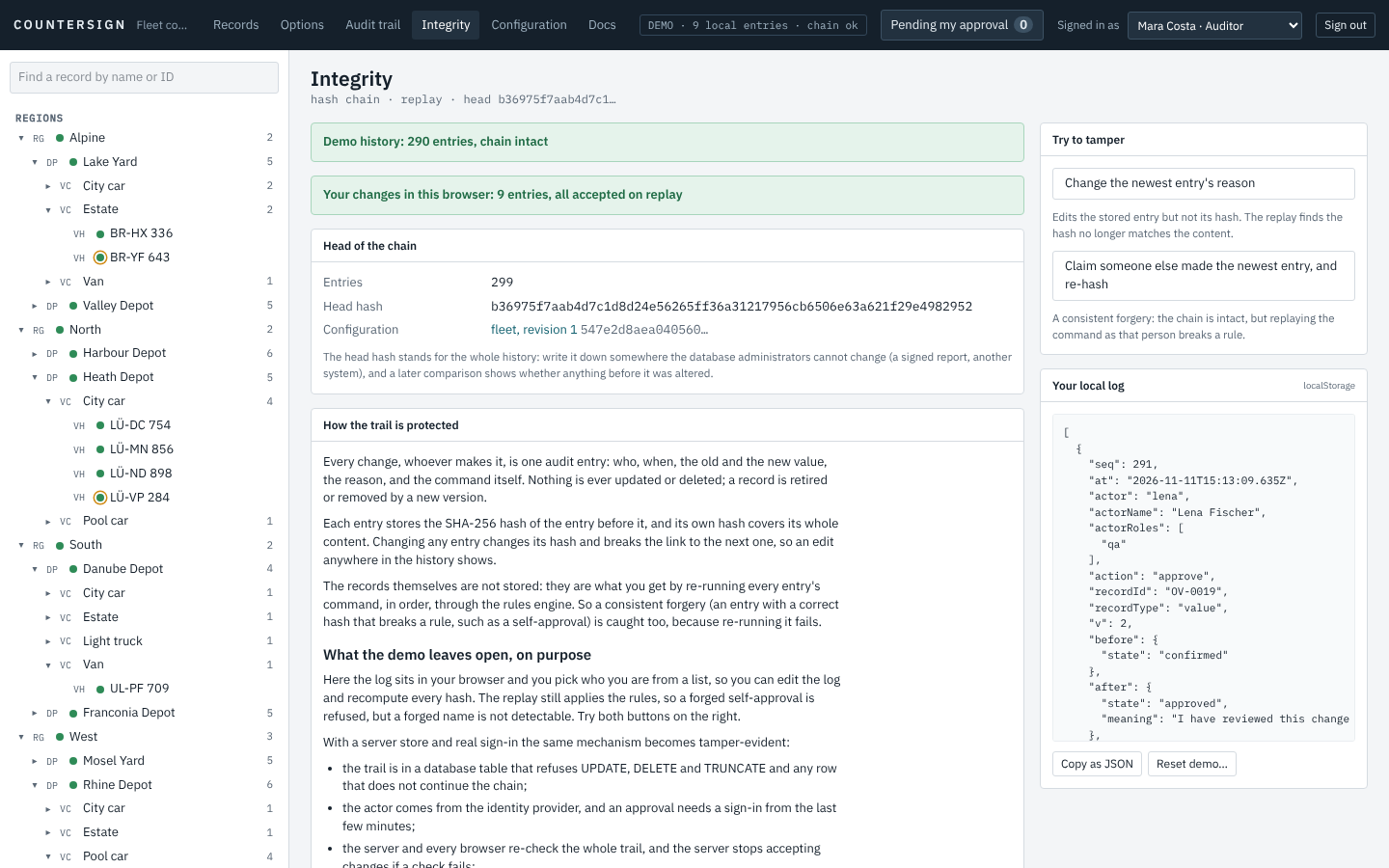
The page re-checks the whole trail in your browser and shows the head hash, which stands for the entire history: if it is written down somewhere outside the database, a later comparison shows whether anything was altered.
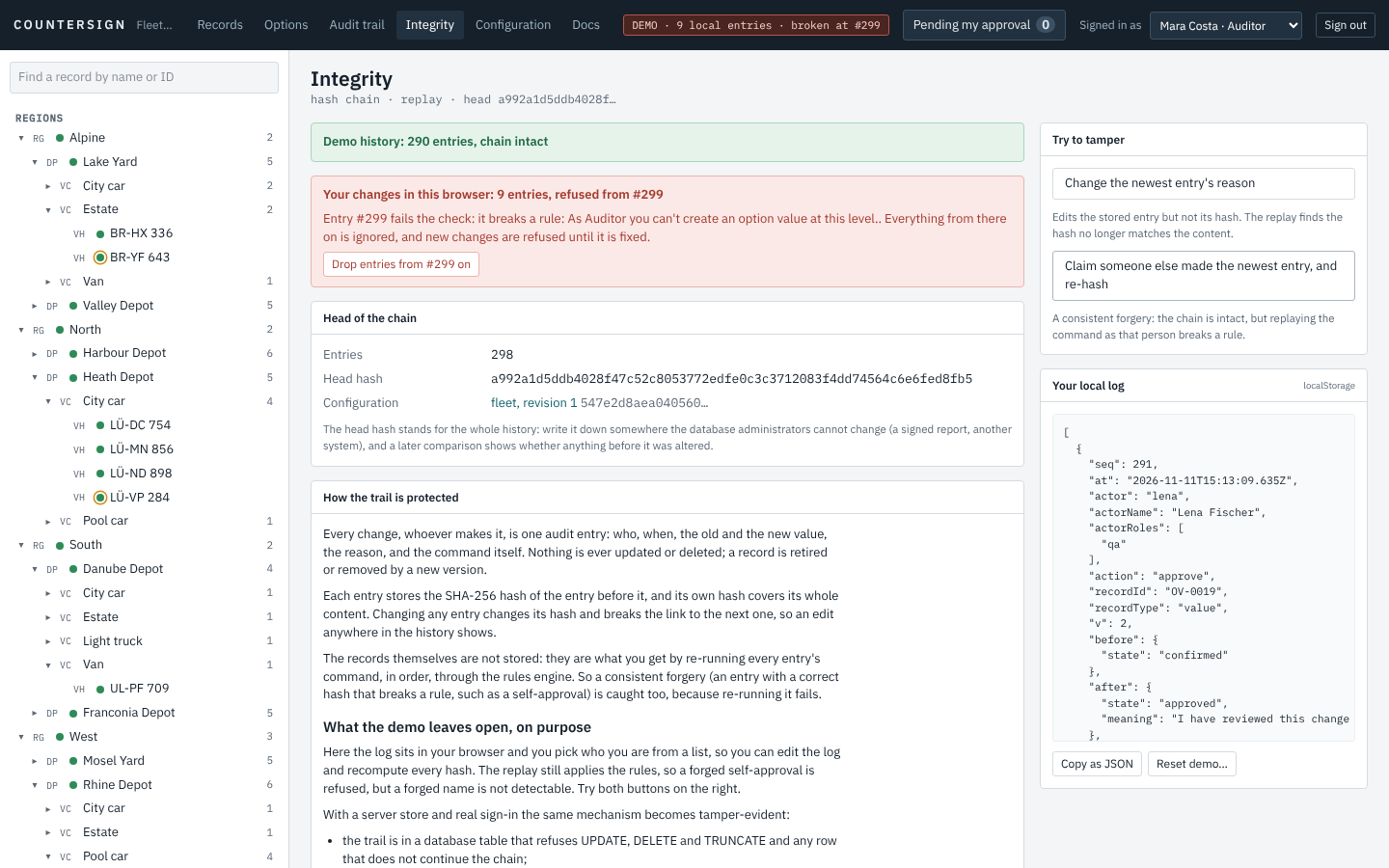
In the demo you can tamper with your own entries to see what happens: an edited entry no longer matches its hash, and a forged entry with a recomputed hash fails when its command is re-run under the rules. A production server refuses every change while such a fault exists.
Configuration
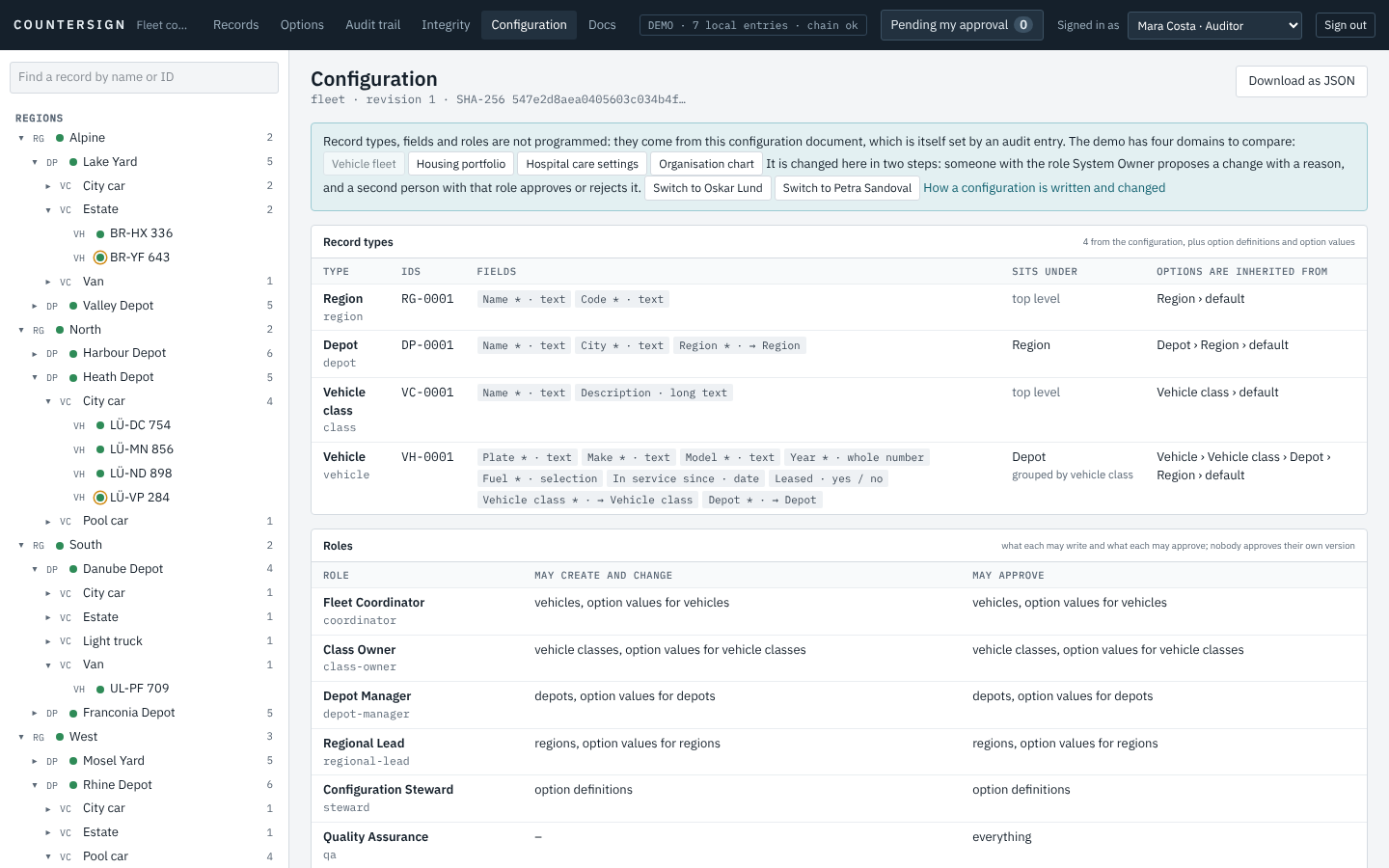
Configuration shows what this installation is made of: the record types and their fields, how options are inherited,
what each role may write and approve, and the history of the configuration itself. Everyone can read it. People whose
role has the configure permission can change it, in two steps and with two people, as described next.
Changing the configuration
The configuration follows the same principle as the records: one person proposes, a second person approves, and nothing takes effect in between.
stateDiagram-v2
  accTitle: A configuration change is proposed by one person and approved by a second
  direction LR
  [*] --> Draft: Edit configuration
  Draft --> Proposed: propose, with a reason
  Proposed --> InEffect: approve (a second person)
  Proposed --> [*]: reject (a second person, with a reason)
  Proposed --> [*]: withdraw (the proposer)
  InEffect --> [*]
  note right of Proposed
    The configuration in effect is
    unchanged. One proposal at a time.
  end note
1. Edit a draft
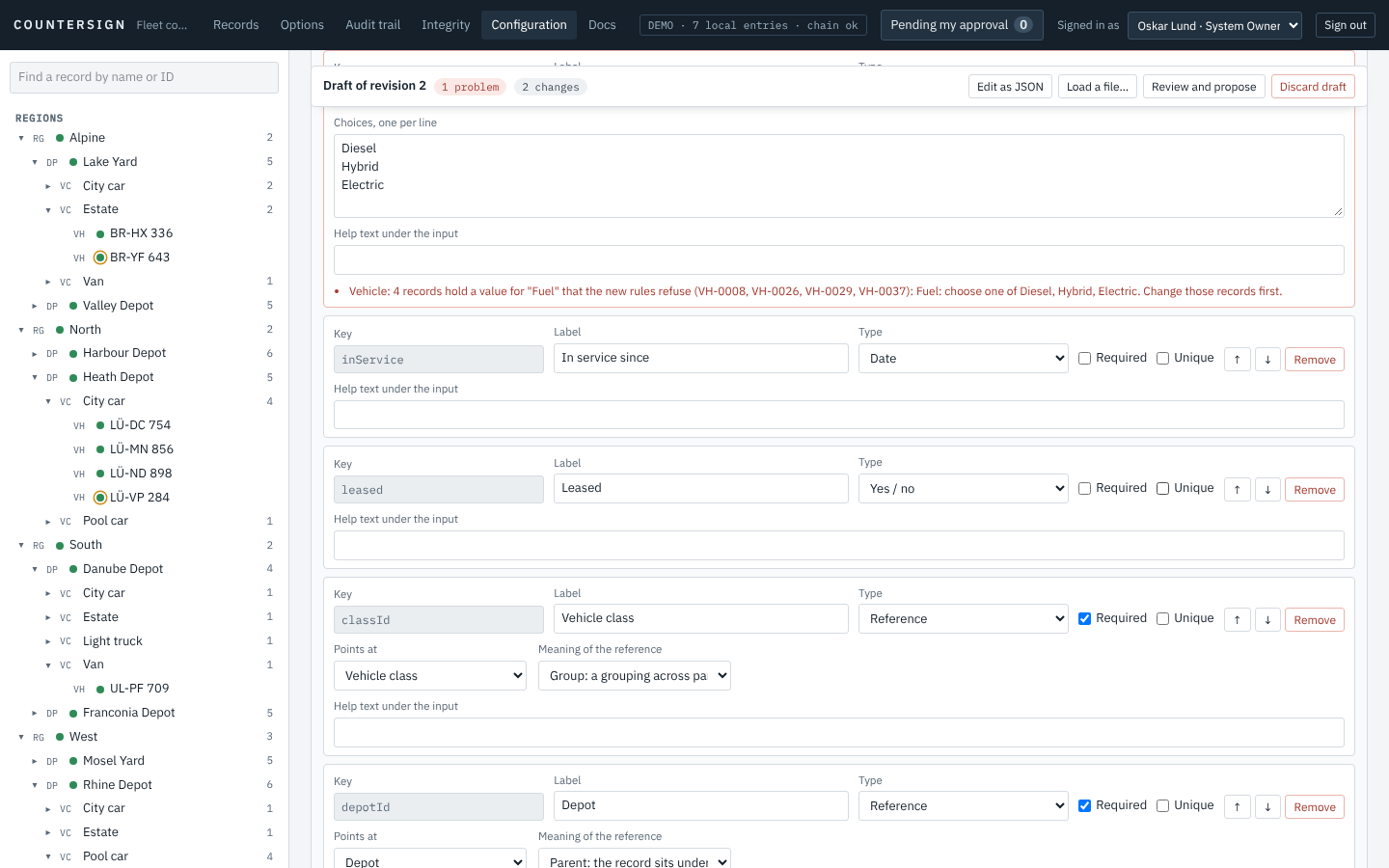
Edit configuration opens a draft of the next revision. Everything in the configuration document can be edited:
| Part | What you can do |
|---|---|
| Domain | The name, the description and the suggested option groups. The id is fixed. |
| Record types | Add, remove and reorder them; label, plural, id prefix, name field, description, and which fields are shown under the title. |
| Fields | Add, remove and reorder them; label, type, required, unique, and what the type needs: the choices of a selection, the smallest and largest value of a number, the pattern of a text and its message, the help text. |
| Hierarchy | A reference field points at a record type and is a parent (the record sits under it and inherits its options), a group (a grouping across parents) or a plain link. A parent may be optional (records can then stand at the top) and may point at its own record type (records then nest to any depth). |
| Roles | Add, remove and reorder them; name, summary, and a table of what the role may write and approve. |
The id of an existing record type or role and the key of an existing field cannot be changed: they are identities that permissions, records and the audit trail refer to. New ones choose theirs.
The draft is checked while you edit it. The bar at the top counts the problems; each problem is shown next to the record type, field or role that causes it. Two kinds of check run:
- the rules for a configuration document (an id used twice, a selection without choices, a reference to a record type that does not exist, …), and
- the records that exist: the same engine that decides on the server runs in your browser against the current records. In the picture, removing the choice “Petrol” is refused because four vehicles use it, and they are named.
Edit as JSON shows the same draft as a document, for pasting or for changes that are quicker in text; Load a file… replaces the draft by a configuration file. Both go through the same checks. The draft is kept in this browser tab until you propose or discard it.
2. Review and propose
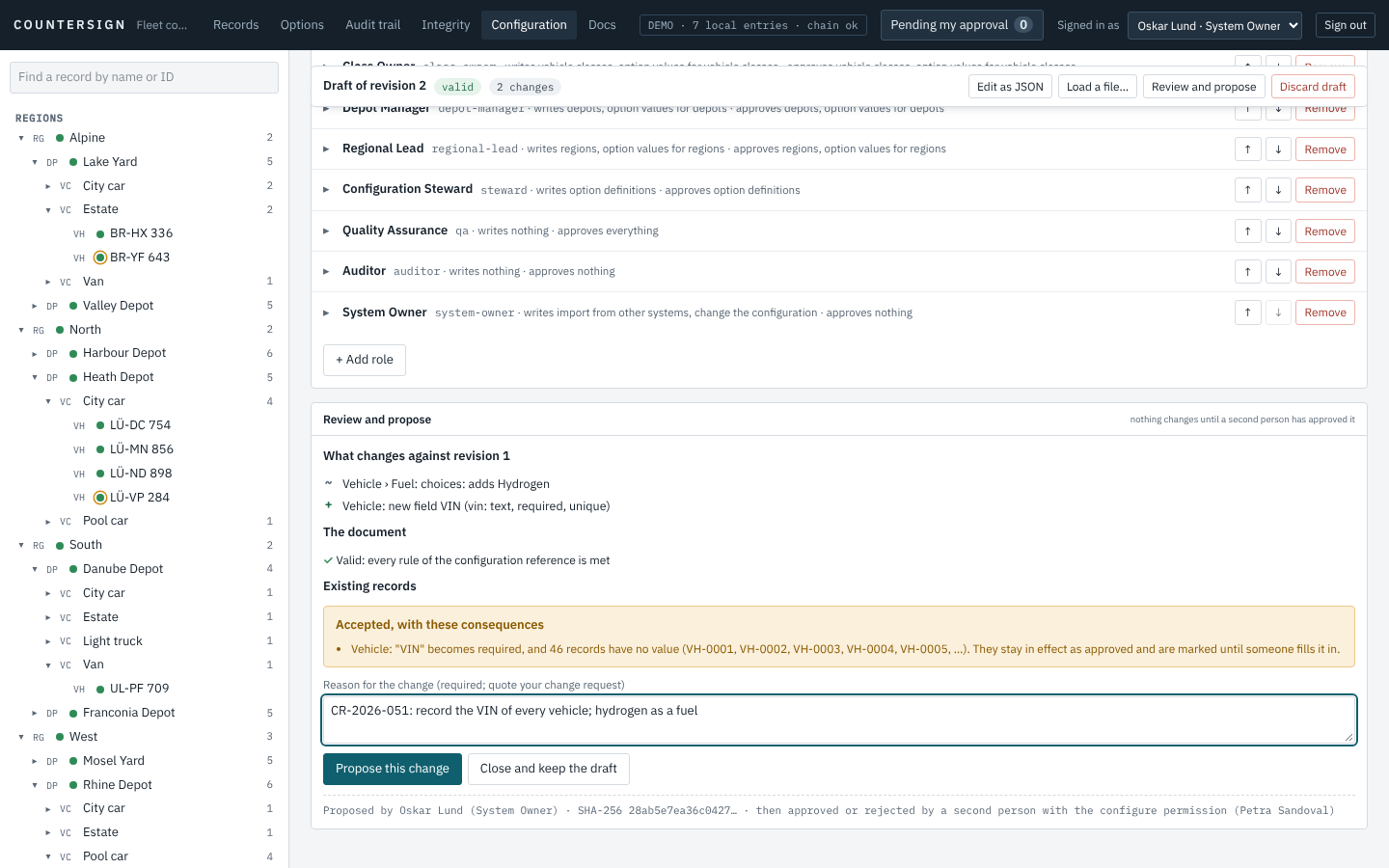
At the end of the editor, Review and propose lists every change against the configuration in effect and says what it means for existing records: nothing, a refusal (to be resolved first), or a consequence that is accepted. In the picture a new required field is added: the vehicles that exist stay in effect and are marked until someone fills it in (see Records to complete). Give the reason (quote your change request) and Propose this change. That writes one audit entry and changes nothing else.
3. A second person decides
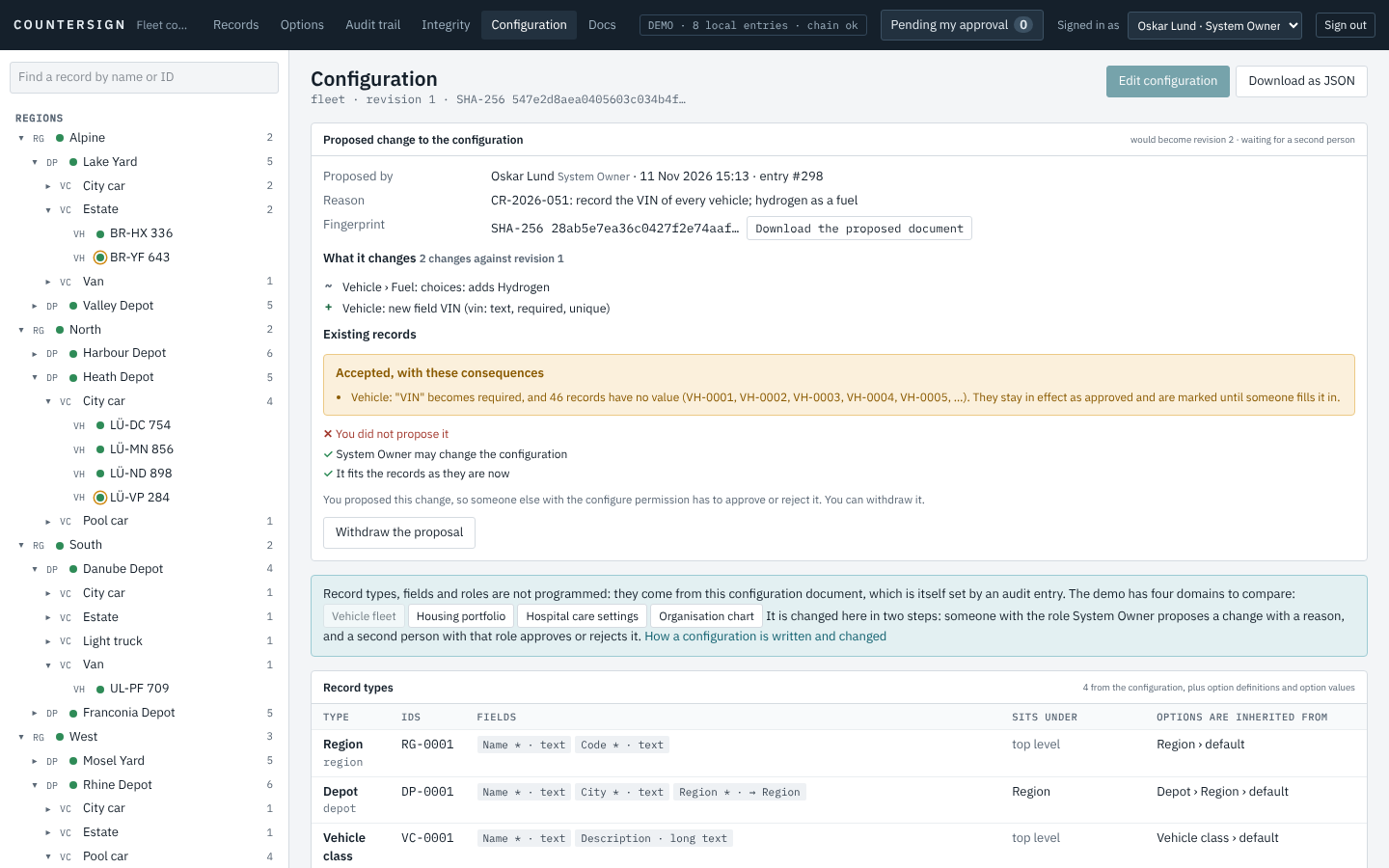
The proposal is shown at the top of the configuration page to everyone: who proposed it, why, what it changes, and its fingerprint. Its proposer can withdraw it and is not offered the approval. While it waits, no other change can be proposed.
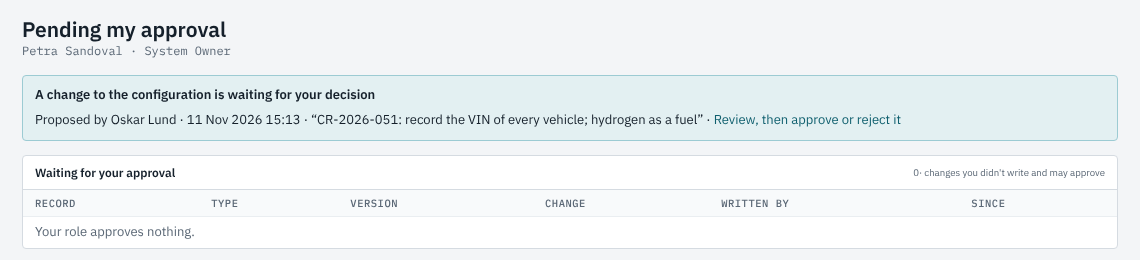
Everyone else who may configure finds it in their inbox and in the count at the top.
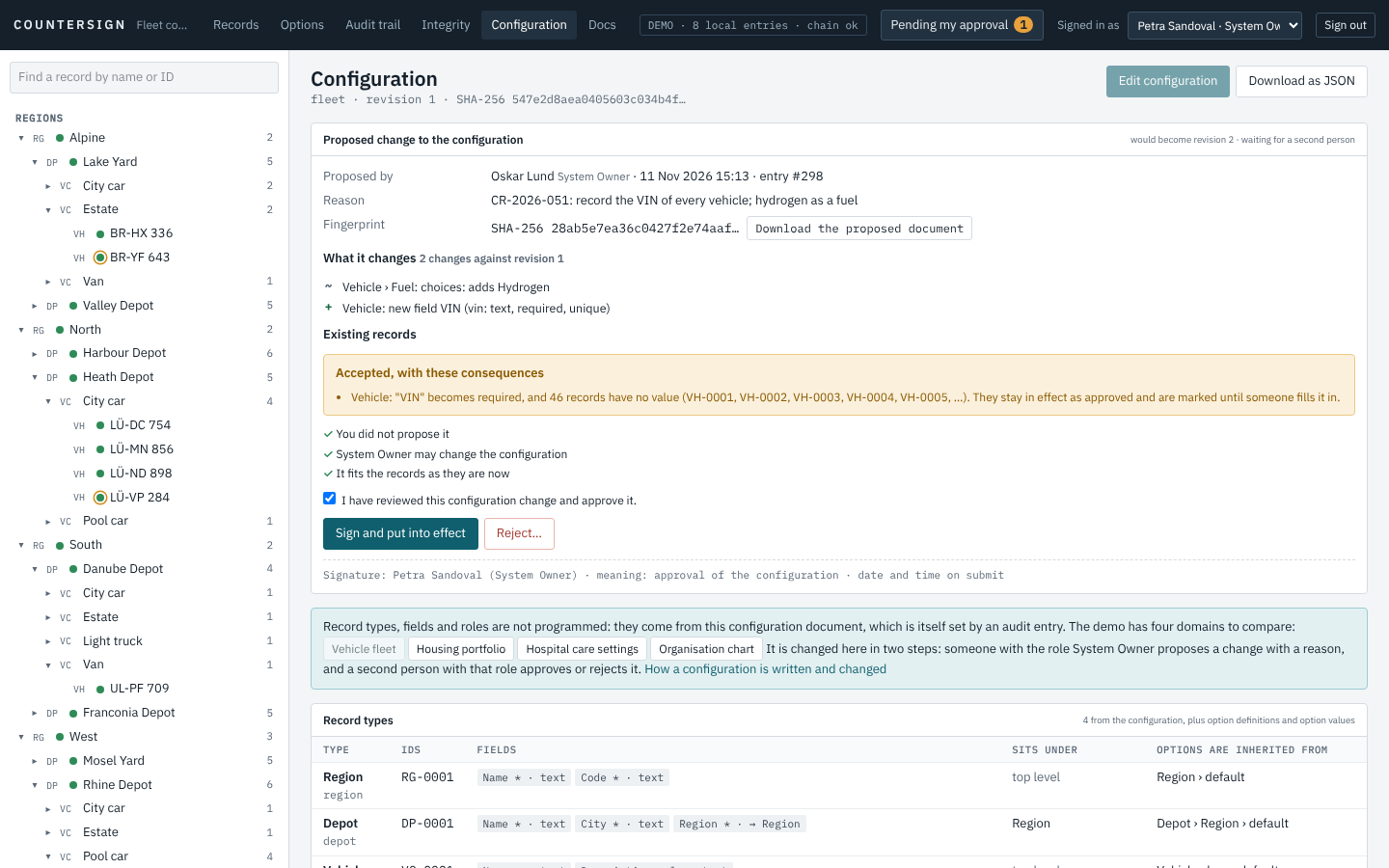
Before signing, the second person sees the same list of changes and their effect on the records as they are now, and can download the proposed document. Sign and put into effect is a signature like any approval (on a server it needs a recent sign-in); from that moment the new revision is in force for every action. Reject… asks for a reason and leaves the configuration as it was. Either way the decision is an audit entry, and the history at the bottom of the page shows every proposal, approval, rejection and withdrawal.
Records to complete
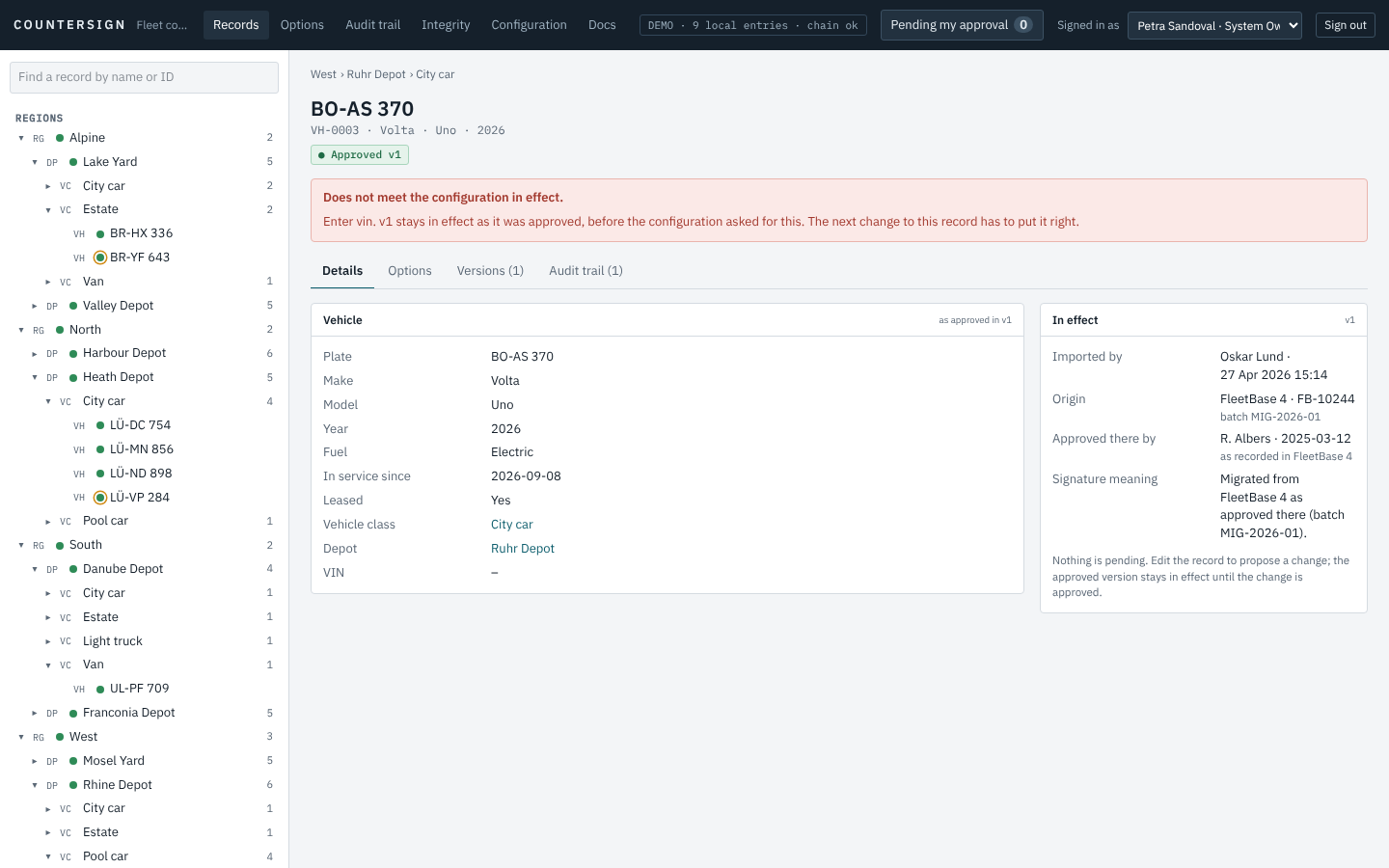
When a field becomes required, existing records cannot have a value for it yet. They stay in effect exactly as they were approved; each one is marked on its page, and the configuration page lists them under Records to complete. The next change to such a record has to fill the field in before it can be saved.
All other changes that existing records would contradict are refused until the records are changed first; the rules are in Configuration.
Records nested to different depths
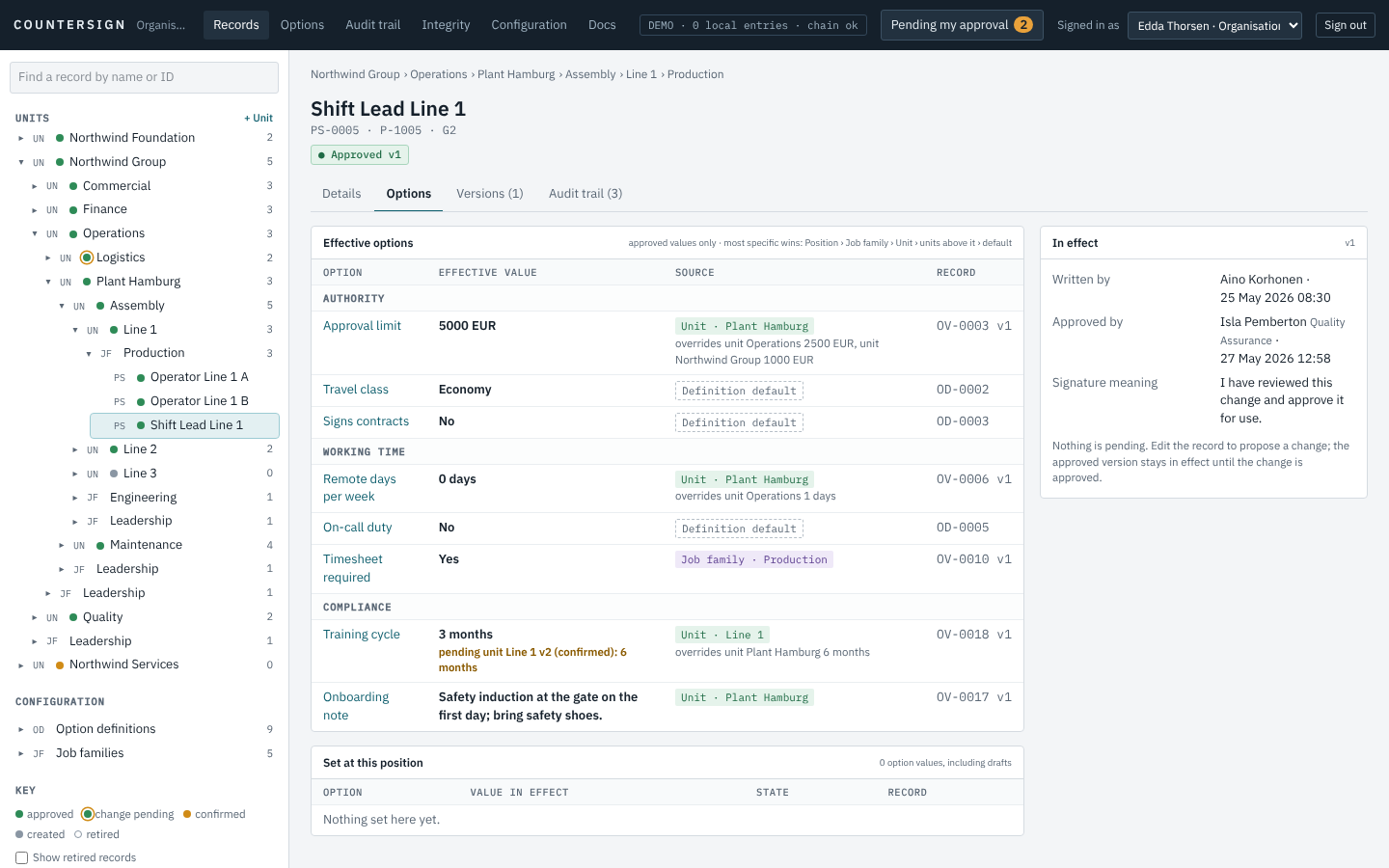
A configuration can let a record type sit inside itself, and can make a parent optional, so the branches of the tree are as deep as the organisation they describe. The demo domain “Organisation chart” shows it: units contain units (Group › Division › Site › Department › Team in one branch, Group › Department in another), a second unit stands at the top beside the group, and positions hang off a unit at any depth.
- The tree opens down to wherever a record is; records without a parent stand at the top of their section.
- The path above the title lists everything the record sits under.
- Options are inherited down every level: the nearest unit that sets a value wins, and the source column says which one. In the picture the approval limit comes from Plant Hamburg, three units up, and overrides the values of Operations and of the group.
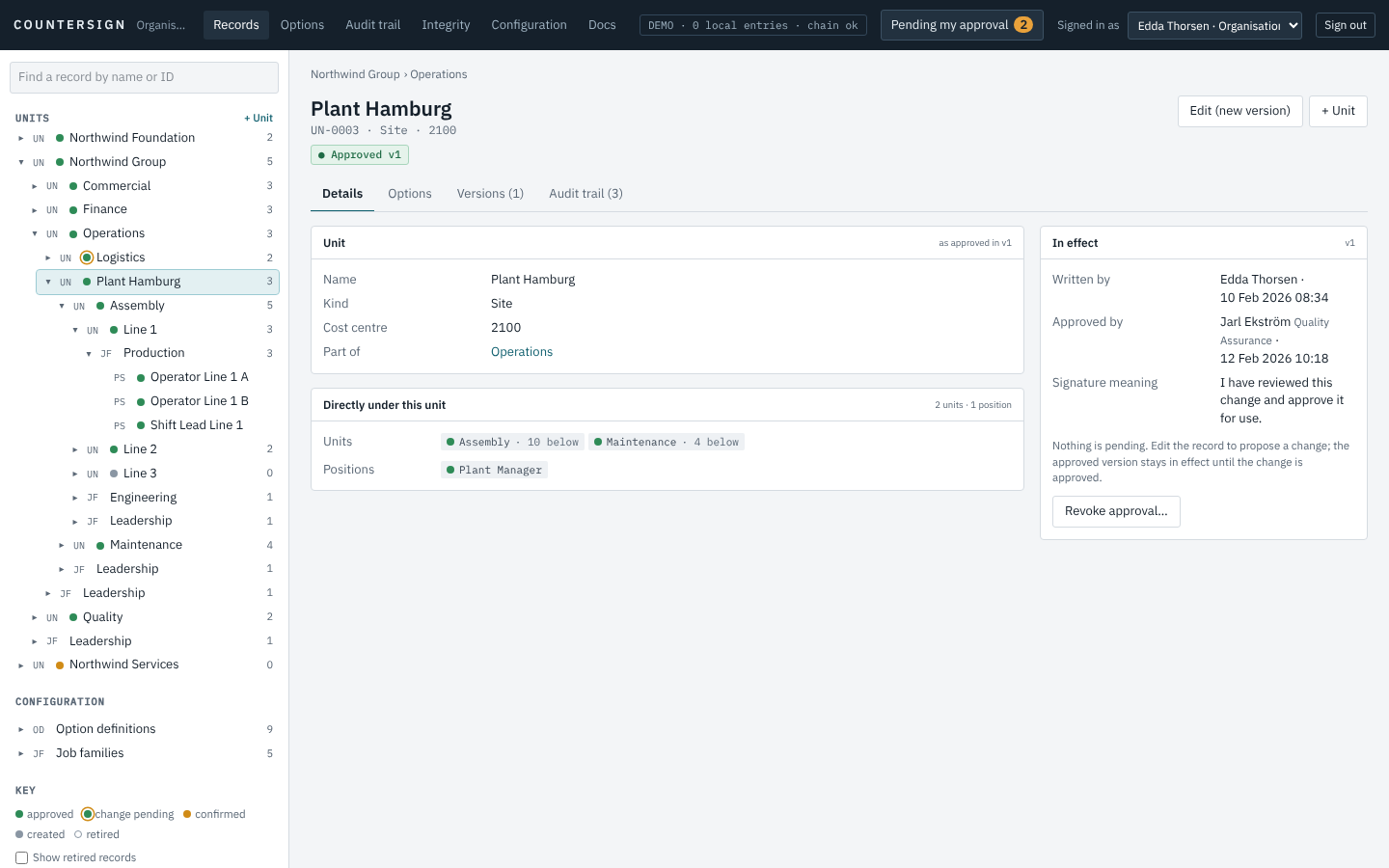
A record's page lists what sits directly under it, with a count of everything further down, and offers to add the next record there.
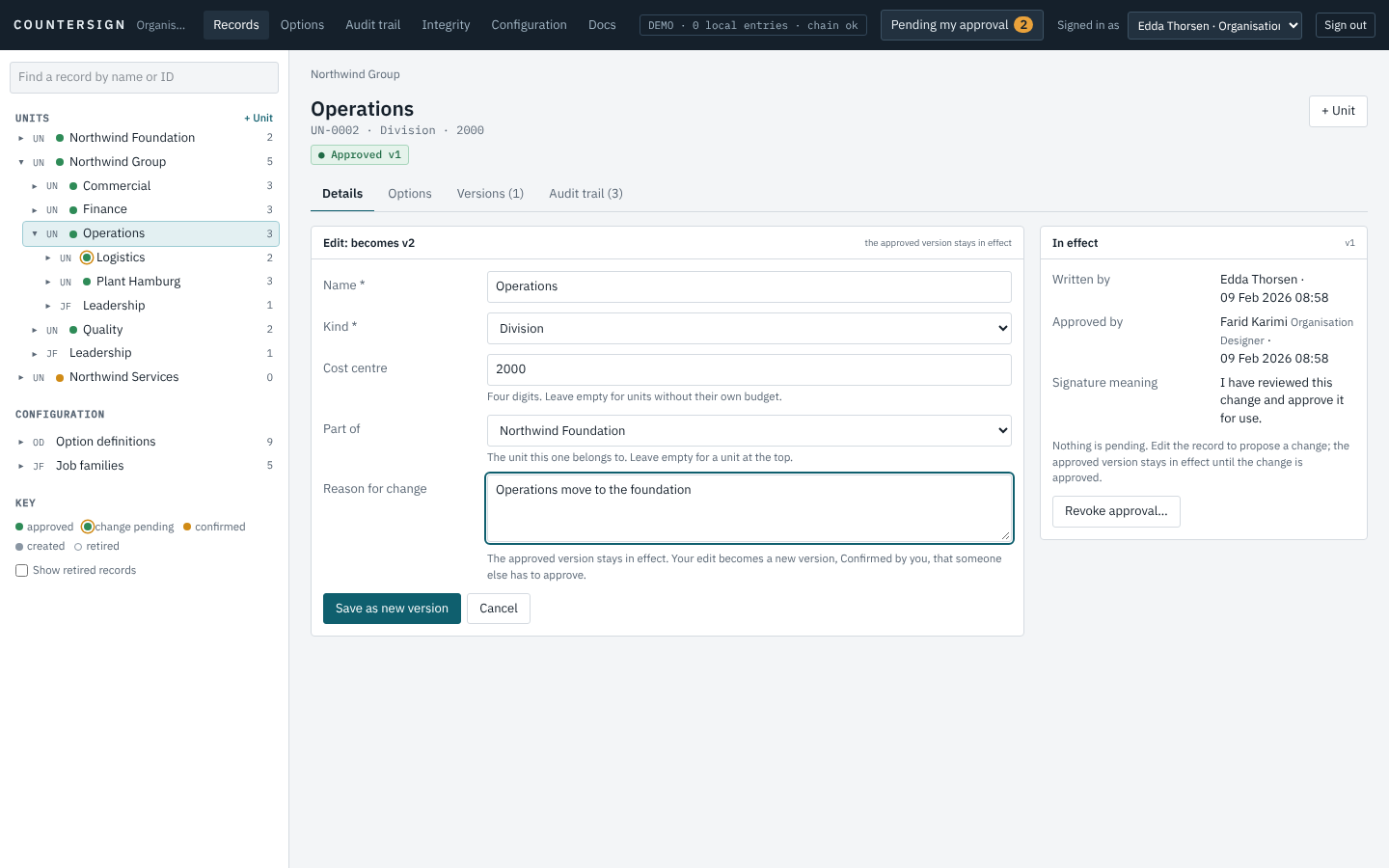
To move a record, edit its parent. The list offers every possible place by its full path, and “None: at the top level” where the parent is optional. It never offers the record itself or anything under it, and the engine refuses such a move as well: a record cannot be its own ancestor. Like every change to an approved record, the move is a new version that a second person approves; until then the record stays where it is.
Records that came from another system
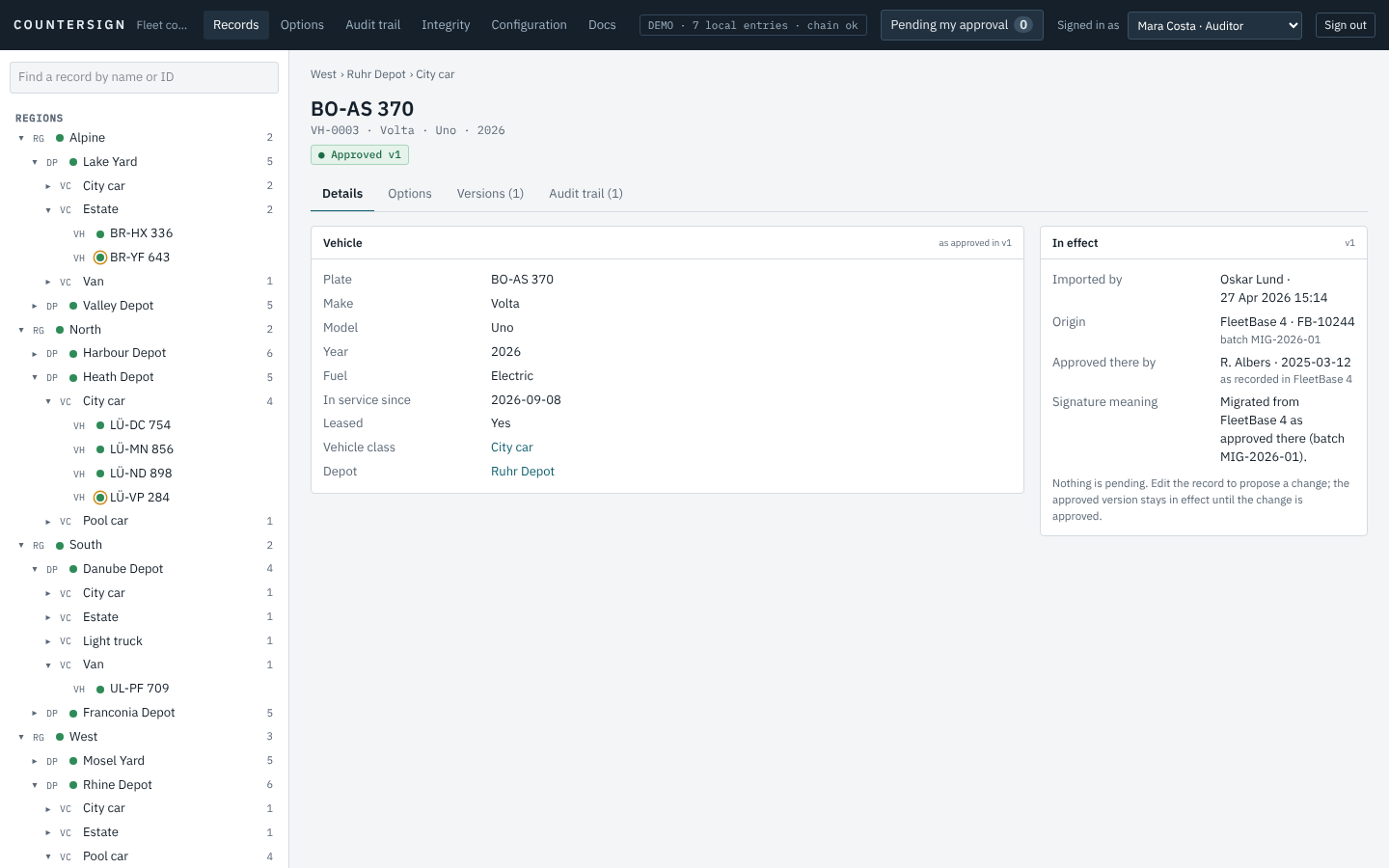
A record that was migrated shows its origin instead of an approver: the system it came from, its identifier there, the migration batch, and who approved it there as that system recorded it. From then on it behaves like any other record.
On a phone
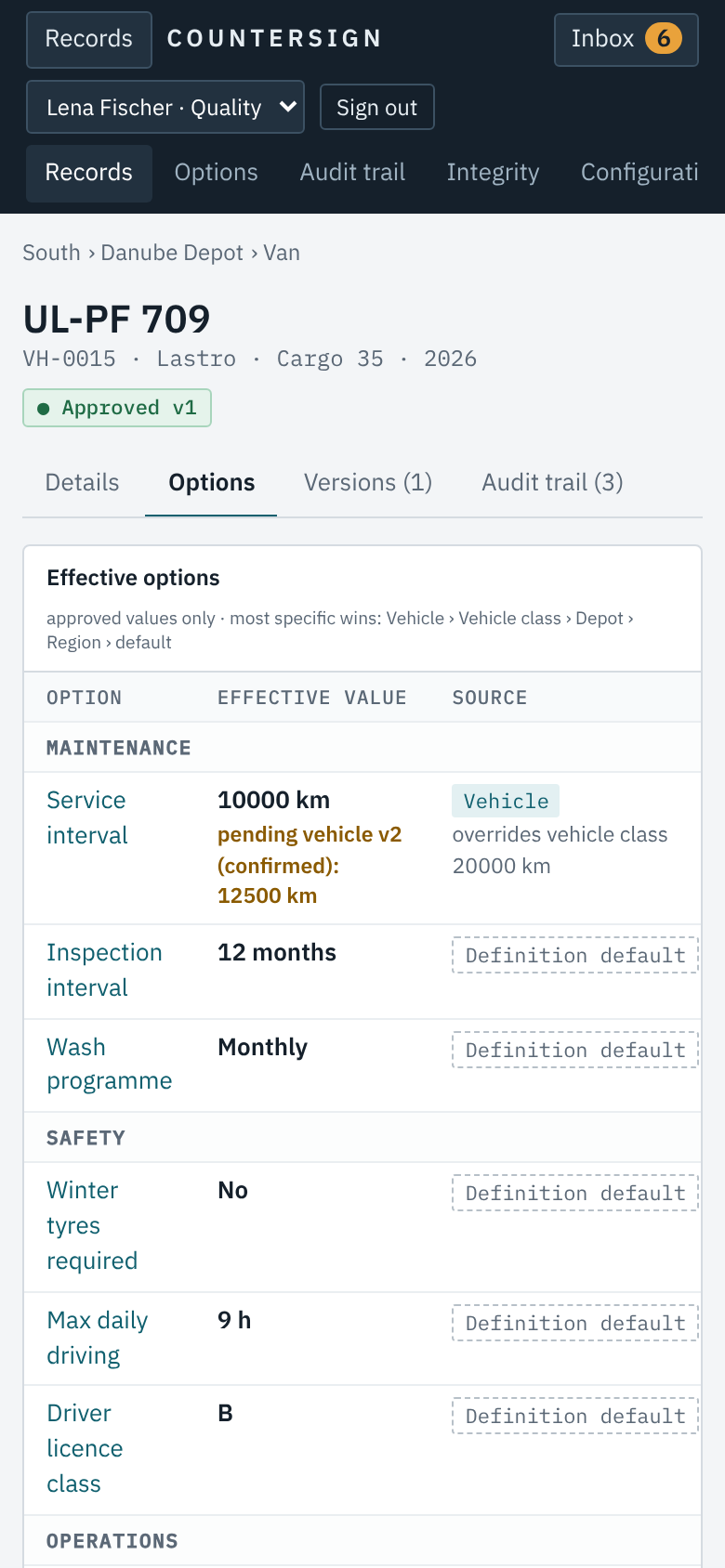
Everything works on a narrow screen; the tree is behind the Records button.
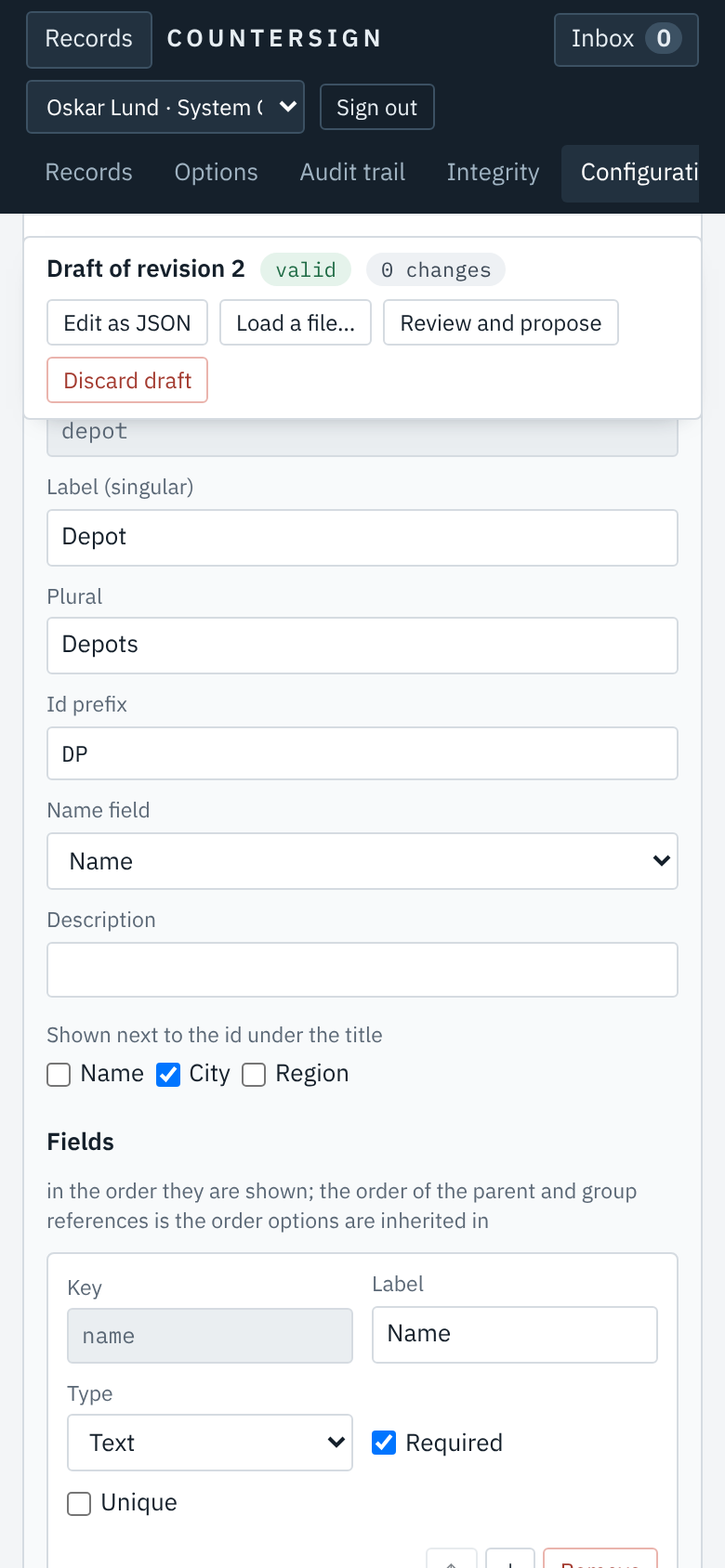
Messages you may see
| Message | What it means | What to do |
|---|---|---|
| Four eyes: you wrote … so someone else has to approve it. | You are the author of this version. | Ask a colleague with the approve right. |
| … is Confirmed and locked. Step it back to Created to change it. | A confirmed version cannot be edited. | Step it back (author or approver), change it, confirm again. |
| Changing an approved record needs a reason. | The reason field is empty or too short. | Say why the change is needed. |
| … still has N active records that refer to it. | You are retiring or removing something others depend on. | Retire or move those records first. |
| These choices are in use and can't be removed or renamed. | Option values use the choice. | Change or remove those values first. |
| … is under … so … can't be placed under it: a record can't be its own ancestor. | You are moving a record below itself. | Choose a place that is not under the record. |
| Does not meet the configuration in effect. | A field became required after this record was approved. | Edit the record and fill it in; a second person approves. |
| A configuration change proposed by … is waiting. | Only one proposal can wait at a time. | Have it approved, rejected or withdrawn first. |
| Four eyes: you proposed this configuration change, so someone else has to approve it. | You are the proposer. | Ask a second person with the configure permission. |
| … records hold a value for … that the new rules refuse (…). | The configuration change would make approved data invalid. | Change the named records first, then propose again. |
| A signature needs a sign-in from the last N minutes. | Your sign-in is too old for a signature. | Follow "Sign in again", then approve. |
| The audit trail failed its integrity check … Changes are refused. | The server found a damaged entry. | Tell your administrator; see Operations. |